Market DNA: Structure, Volume, Range, and SessionsMarket DNA: Structure, Volume, Range, and Sessions**
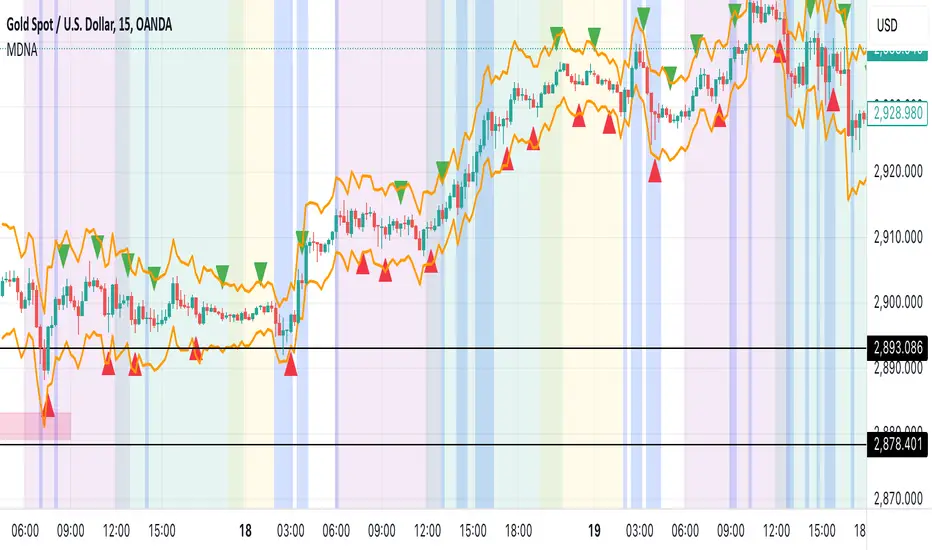
The Market DNA indicator combines market structure, volume analysis, trading ranges, and global trading sessions into a single, comprehensive tool for traders. It helps identify key price levels, volume patterns, consolidation phases, and active market periods, enabling informed trading decisions.
Market Structure Detects swing highs and lows using `ta.pivothigh` and `ta.pivotlow`, plotting them as red/green triangles to highlight support/resistance and trend reversals.
- Fractal Volume Zones (FVG): Highlights areas of significant buying/selling pressure by comparing current volume to an average over a lookback period; high-volume zones are marked with a semi-transparent blue background.
- Trading Range: Defines a price channel using the Average True Range (ATR) and a multiplier, creating upper/lower bands to identify consolidation, breakouts, and potential trade levels.
- Market Sessions: Highlights major global trading sessions (Asia, Europe, US) with colored backgrounds (purple, teal, yellow) to indicate liquidity and volatility shifts.
How It Works
- Swing points help analyze trends and reversals.
- FVG confirms price movements with high volume for stronger signals.
- Trading range bands assist in identifying breakout opportunities and setting stops/take-profits.
- Session highlights allow traders to adapt strategies based on regional activity.
Customization
- Adjust `swing_length` for sensitivity in detecting turning points.
- Modify `volume_lookback` to control volume averaging.
- Tune `range_multiplier` for wider/narrower trading bands.
- Enable/disable session highlighting via `session_highlight`.
Use Cases
- Identify trends and key levels using swing points and FVG.
- Spot breakout opportunities with trading range bands.
- Adapt strategies to regional trading sessions for optimal timing.
This all-in-one indicator provides a clear, customizable view of the market, empowering traders to make data-driven decisions across asset classes and timeframes.
ابحث في النصوص البرمجية عن "session high"
Asia Sessions AutoPlotting**Asia Sessions AutoPlotting**
This script is designed to automatically detect and plot the Asia session high and low levels directly on your chart, providing key session data for trading analysis. It is highly customizable, making it an essential tool for traders who rely on session data for decision-making.
### Key Features:
- **Asia Session Detection**: Automatically identifies the Asia session based on user-defined time settings (default: 0000-0845 UTC).
- **High/Low Line Plotting**: Displays high and low price levels for the session with customizable colors and line styles.
- **Line Extensions**: Option to extend session high/low lines for future price action reference.
- **Session Background Fill**: Adds an optional colored background to highlight the Asia session period.
- **Day Labels**: Includes labels for the session high/low levels with the corresponding day of the week.
- **Dynamic Session History**: Limits the display to a user-specified number of past sessions (default: 7) to keep the chart clean and focused.
- **Customizable Colors**: Highlights Mondays with unique colors for easy identification, while other weekdays use a different scheme.
### Use Cases:
- Identify key session levels for trading strategies.
- Monitor Asia session dynamics and their impact on subsequent sessions.
- Spot significant price reactions around session highs/lows.
### Inputs:
- **Session Time**: Adjust the session time to match your preferred Asia trading hours.
- **Toggle High/Low Lines**: Enable or disable the plotting of session highs and lows.
- **Line Extensions**: Extend the session high/low lines into future bars for better visualization.
- **Background Highlight**: Toggle a colored background for the Asia session.
- **Maximum Sessions**: Define how many past sessions to display for clarity.
This script is perfect for intraday traders, scalpers, and swing traders looking to gain insight into the Asia session and its influence on global markets. Fully adjustable and easy to use, it enhances your chart with critical information at a glance.
Simply add it to your TradingView chart, configure your settings, and let it do the work for you!

TLA20 - Multi-Session Box and Level ToolTLA20 is a highly customizable indicator designed to enhance intraday analysis by marking predefined trading sessions, key levels, and midpoints directly on your charts. With its versatile features, TLA20 is ideal for traders looking to visualize multiple time zones, daily price ranges, and historical reference levels efficiently.
Key Features:
Session Visualization: Mark up to three custom trading sessions with distinct start and end times, adjustable for different time zones and weekend inclusions.
Dynamic Highlights: Automatically draw session highs, lows, midlines, and open prices with options to extend beyond session bounds.
Custom Styling: Configure border colors, styles, and fill options for each session box to match your chart preferences.
Historical Levels: Highlight previous daily highs/lows, weekly highs/lows, and monthly highs/lows for improved context in your trading.
Intuitive Adjustments: Enable or disable each feature and customize settings for precise alignment with your trading strategy.
Use Cases:
Track trading sessions across different markets and time zones.
Identify key price levels like session midpoints and opens for entry/exit strategies.
Overlay historical levels to recognize potential support and resistance areas.
This indicator does not provide direct trading signals but serves as a robust tool for enhancing technical analysis.
Disclaimer: The script is provided “as is” without warranties of any kind. Always test on a demo account before applying in live markets.

Omni-Trend Analytics + Live PnL DashboardOverview
The Omni-Trend Analytics suite is an all-in-one technical command center. It integrates the battle-tested UT Bot signal logic with a sophisticated real-time dashboard, session tracking, and multi-timeframe trend analysis.
📊 The "Nexus" Dashboard
The heart of this script is the 6-row dynamic dashboard, designed to give you "at-a-glance" confluence:
RSI & RSI-MA: Tracks the standard RSI alongside a custom RSI-based Moving Average to spot momentum shifts before they hit the price.
Selectable Trend Status: Unlike static indicators, you can toggle the "Trend" source between EMA 9, 20, or 200 in the settings to match your trading style (Scalping vs. Swing).
Distance to EMA: Shows exactly how "overextended" the price is from your selected trend line.
ATR Volatility (Color-Coded): Turns Green when volatility is expanding (ideal for trend following) and Red when the market is contracting (ideal for range-trading or caution).
Live PnL Tracking: Automatically calculates the profit or loss of the most recent UT Bot signal in real-time.
🛠️ Key Features & Settings
Precision Signals: Combines UT Bot Buy/Sell labels with RSI "!" reversal warnings for high-probability entries.
Institutional Moving Averages: Includes 5 SMAs (including the 610 SMA) and 3 EMAs (9, 20, 200) all set to a professional Thickness 2 for clarity.
Session Highlighting: Automatically shades the background for London and New York sessions to help you trade when liquidity is highest.
VWAP Integration: Includes a purple VWAP line to ensure you are trading at a "fair value" relative to volume.
🔔 Strategic Alert Suite
The script comes pre-loaded with 6 specialized alert conditions:
UT Bot Signal: Standard entry alerts.
RSI Cross RSI-MA: Early warning for momentum reversals.
High-Prob UT + VWAP: Signals that only trigger when aligned with institutional volume.
EMA 9/20 Momentum Cross: Classic trend-shift notification.
ATR Volatility Spike: Alerts you to 50% increases in market volatility.
PnL Target / Break-Even: Pings you when your live trade reaches a user-defined profit threshold.
💡 Trading Pro-Tip
The Convergence Strategy: Look for a UT Bot Buy signal that occurs during the London/NY Overlap while the ATR is Green (expanding) and the RSI is crossing over its RSI-MA. This "triple confluence" is the primary design intent of the Omni-Trend suite.

6-9 session & levels6-9 Session & Levels - Customizable Range Analysis Indicator
Description:
This indicator provides comprehensive session-based range analysis designed for intraday traders. It calculates and displays key levels based on a customizable session period (default 6:00-9:00 AM ET).
Core Features:
Session Tracking
Monitors user-defined session times with timezone support
Displays session open, high, and low levels
Highlights session range with optional box visualization
Shows previous day RTH (Regular Trading Hours: 9:30 AM - 4:00 PM) levels
Range Levels
25%, 50%, and 75% range levels within the session
Range deviations at 0.5x, 1.0x, and 2.0x multiples
Fibonacci extension levels (customizable, default 1.33x and 1.66x)
Optional fill zones between Fibonacci levels
Time Zone Highlighting
Marks the 9:40-9:50 AM period as a potential reversal zone
Vertical lines with shading to identify key time windows
Statistical Analysis
Calculates mean and median extension levels based on historical sessions
Displays statistics table showing current range, average range, range difference, and z-score
Customizable sample size (1-100 sessions) for statistical calculations
Option to anchor extensions from either session open or high/low points
Input Settings Explained:
Session Settings
Levels Session Time: Define your session window in HHMM-HHMM format (default: 0600-0900)
Time Zone: Choose from UTC, America/New_York, America/Chicago, America/Los_Angeles, Europe/London, or Asia/Tokyo
Anchor Settings
Show Session Anchor: Toggle the session anchor line (marks session open price at 6:00 AM)
Anchor Style/Color/Width: Customize appearance (Solid/Dashed/Dotted, color, 1-4 width)
Show Anchor Label: Display price label for the anchor
Session Open Line: Similar options for the session open reference line
Range Box Settings
Show Range Box: Display a shaded rectangle highlighting the session high-to-low range
Range Box Color: Set the box background color and transparency
Range Levels (25%/50%/75%)
Show Range Levels: Toggle all three intermediate levels on/off
Individual Level Styling: Each level (25%, 50%, 75%) has its own color, style, and width settings
Show Range Level Labels: Display price labels for each level
Range Deviations
Show Range Deviations: Toggle deviation levels on/off
0.5x/1.0x/2.0x Settings: Each deviation multiplier can be customized with its own color, line style (Solid/Dashed/Dotted), and width
Show Range Deviation Labels: Display labels showing the deviation price levels
Previous Day RTH Levels
Show Previous RTH Levels: Display yesterday's regular trading hours high and low
RTH High/Low Styling: Separate color, style, and width settings for each level
Show Previous RTH Labels: Toggle price labels for RTH levels
Time Zones
Show 9:40-9:50 AM Zone: Highlight this specific time period with vertical lines and shading
Zone Color: Set the background fill color for the time zone
Zone Label Color/Text: Customize the label appearance and text
Fibonacci Extension Settings
Show Fibonacci Extensions: Toggle Fib levels on/off
Fib Extension Color/Style/Width: Customize line appearance
Show Fib Extension Labels: Display price labels
Fib Ext Level 1/2: Set custom multipliers (default 1.33 and 1.66, range 0-5 in 0.1 increments)
Show Fibonacci Fills: Display shaded zones between Fib levels
Fib Fill Color: Customize the fill color and transparency
Session High/Low Settings
Show Session High/Low Lines: Display the actual session extremes
Style/Color/Width: Customize line appearance
Show Labels: Toggle price labels for high/low levels
Extension Stats Settings
Show Statistical Levels on Chart: Display mean and median extension levels based on historical data
Extension Anchor Point: Choose whether to anchor from "Open" or "High/Low" of the session
Number of Sessions for Statistics: Set sample size (1-100, default 60) for calculating averages
Mean/Median High Extension: Separate styling for each statistical level (color, style, width)
Mean/Median Low Extension: Separate styling for downside statistical levels
Tables
Show Statistics Table: Display a summary table with current range, average range, difference, z-score, and sample size
Table Position: Choose from 9 positions (Bottom/Middle/Top + Center/Left/Right)
Table Text Size: Select from Auto, Tiny, Small, Normal, Large, or Huge
Display Settings
Projection Offset: Number of bars to extend lines forward (default 24)
Label Size: Choose from Tiny, Small, Normal, or Large
Price Decimal Precision: Set decimal places for price labels (0-6)
How It Works:
The indicator tracks the specified session period and calculates the session's open, high, low, and range. At the end of the session (9:00 AM by default), it projects all configured levels forward for the trading day. The statistical features analyze the last N sessions (you choose the number) to calculate typical extension behavior from either the session open or the session high/low points.
The z-score calculation helps identify whether the current session's range is normal, expanded, or contracted compared to recent history, allowing traders to adjust expectations for the rest of the day.
Use Case:
This indicator helps traders identify key support and resistance levels based on early session price action, understand current range context relative to historical averages, and spot potential reversal zones during specific time periods.
Note: This indicator is for informational purposes only and does not constitute investment advice. Always perform your own analysis before making trading decisions.

A+ Model - Cave EducationHere is a comprehensive and detailed explanation of the "A+ Model - Cave Education" Pine Script code.
This script is a sophisticated technical analysis tool designed for TradingView. It assists traders in identifying specific institutional time windows, price ranges (sessions), and "Macro" volatility periods based on the ICT (Inner Circle Trader) or similar time-based trading concepts.
Below is the breakdown of how the code functions, organized by its logic sections.
1. General Overview
The script is an overlay indicator (it sits directly on the price chart). Its primary purpose is to:
Highlight a specific trading session (The "A+ Box") and mark its High/Low.
Mark key institutional times (07:00 NY and 09:30 NY Open).
Identify "Macro" windows (specific 20-minute periods where algorithms are active) and draw dynamic ranges around them based on volatility (ATR).
Project future times onto the chart to help the trader prepare for the next day.
2. Settings & Inputs (User Configuration)
The code begins by defining a vast array of user inputs, grouped for better usability:
General Time & Box: Allows the user to define the "A+ Session" time (default 20:00-00:00) and the Time Zone (UTC-5/New York). It also handles the visual style (colors) of the session box.
Visibility: A crucial performance and visual clutter setting. boxDays limits how far back the A+ boxes and time lines are drawn (default 14 days). Macros are strictly limited to the current week to prevent chart lagging.
Line & Text Controls: Every visual element (A+ lines, NY markers, Macros) has toggles (input.bool) to show/hide the lines or the text labels separately.
Macro Settings: Defines the time windows for three separate macros and an ATR Multiplier. The ATR multiplier determines how wide the channel lines are drawn around the macro price action.
3. Logic Breakdown by Section
Section 1: The "A+ Draw" Box (Session Range)
This is the core of the A+ Model.
Logic: The script checks if the current bar is within the user-defined sessionTime.
Box Creation:
When the session starts, it initializes a new Box (box.new).
Throughout the session, it continuously updates the Box's Top (Highest High) and Bottom (Lowest Low) to encompass the full range of that time period.
Extension Lines (Support/Resistance):
Once the session ends, the script draws two horizontal lines: one from the Session High and one from the Session Low.
Smart Break Logic: These lines are active (highActive, lowActive). They extend to the right until the price breaks them (High line is broken by a higher price, Low line by a lower price). This helps traders see if the session range is being respected or broken later in the day.
Section 2: Time Lines (NY Midnight & Open)
This section marks vertical reference points.
It checks for specific times: 07:00 and 09:30 (in the user's timezone).
If the current bar matches these times, it draws a vertical line (line.new) covering the High/Low of that bar and places a label (e.g., "NY." or "09:30") above it.
This helps the trader orient themselves regarding the New York session Open and the "Killzone" start.
Section 3: Macros (Volatility Windows)
This is the most complex calculation in the script.
Definition: Macros are specific time windows (e.g., 09:50–10:10) where price delivery is often accelerated.
Visibility Rule: To keep the script fast, this only runs if isCurrentWeek is true.
ATR Offset: The script calculates the Average True Range (ATR). It uses this to create a "channel" around the price.
Drawing Logic:
When a Macro time starts, the script tracks the Highest High and Lowest Low inside that specific 20-minute window.
It draws parallel horizontal lines above and below these prices.
The Twist: The lines are not drawn at the High/Low. They are offset by ATR * Multiplier. This creates a wider "zone" around the macro price action, visually indicating a volatility range.
Section 4: Future Projection (Tomorrow)
This feature is for planning ahead.
It runs only on the last bar of the chart (barstate.islast).
It calculates the timestamps for the next occurrence of the key times (07:00, 09:30, and all three Macros).
It draws vertical lines into the future (empty space on the right of the chart).
Benefit: The trader can see exactly where 09:30 or the next Macro will occur on the timeline before the candles even print.
4. Helper Functions
The code uses custom functions to keep the logic clean:
f_drawFuture(...): A standardized function to draw the future vertical lines and labels so the code doesn't have to repeat itself for every single time marker.
isStartTime(...) & isInTime(...): Shorthand functions to check if the current candle belongs to a specific session string (like "0950-1010").
Summary of Improvements in this Version
Compared to a standard indicator, this script is highly optimized:
Text Control: You can turn off text labels while keeping the lines (or vice versa).
Performance: It limits historical drawing (only 14 days back for boxes, only this week for macros) to prevent "Maximum Line Count" errors in Pine Script.
Visual Clarity: It uses different colors for different Macros (Blue, Red, Orange) to make them instantly distinguishable.

GOGO SCALPER# GOGO SCALPER - Advanced Multi-Timeframe Trading Indicator
## Overview
GOGO SCALPER is a comprehensive trading indicator that combines multiple proven trading concepts into one powerful tool. It provides automated bias detection, session analysis, market structure tracking, and high-probability entry signals for scalpers and day traders.
## Key Features
### 🎯 Auto Bias System
- **Dual Timeframe Analysis**: Automatically tracks both Lower Timeframe (LTF) and Higher Timeframe (HTF) bias using EMA-based momentum
- **Dynamic Confidence Scoring**: Real-time confidence percentage (0-100%) for BUY/SELL signals based on multiple market factors
- **Smart Signal Generation**: Only triggers entries when both timeframes align during active trading sessions
### 📊 Market Phase Detection
- **Expansion vs Consolidation**: Automatically identifies whether the market is in an expansion or consolidation phase
- **Multi-Metric Analysis**: Uses Bollinger Band Width, Average Daily Range (ADR), and ATR ratios to determine market conditions
- **Trend Strength Indicator**: Shows whether the current trend is STRONG or WEAK
### 🕒 Killzone Session Management
- **Four Major Sessions**: Asia, London, NY AM, and NY PM killzones with customizable times
- **Visual Session Boxes**: Color-coded boxes highlighting active trading sessions
- **Session Range Tracking**: Displays the price range for each killzone session
- **Auto Time Remaining**: Shows countdown timer for active sessions
### 📈 Multi-Timeframe Structure Analysis
- **HTF Candle Visualization**: Displays H1, H4, and Daily candles as mini-charts on your current timeframe
- **Sweep Detection**: Automatically identifies bullish and bearish liquidity sweeps
- **Numbered Candle System**: Labels candles 1-5 leading up to sweeps for pattern recognition
- **Counter-Sweep Protection**: Filters out invalidated sweeps automatically
### 🔍 Market Structure Tools
- **CISD (Close in Structure Detection)**: Identifies when price closes through pivot highs/lows
- **FVG Detection**: Automatically plots Fair Value Gaps (Bullish & Bearish) with mitigation tracking
- **H4 & Daily Open Lines**: Tracks key opening prices with dynamic extension
- **High/Low Levels**: Plots session highs and lows with breakout alerts
### 📋 Information Dashboard
- **Comprehensive Table Display**: Shows all critical information at a glance
- Current HTF and LTF bias
- Active session
- Trend strength
- Signal direction
- Confidence percentage
- Entry confirmation status
- Market phase (Expansion/Consolidation)
- Killzone ranges
### ⚡ Entry Signal System
- **BUY Signal**: Triggers when price crosses above Bollinger Band upper level during bullish bias
- **SELL Signal**: Triggers when price crosses below Bollinger Band lower level during bearish bias
- **Session Filter**: Signals only activate during configured killzone sessions
- **Confirmation Labels**: Clear "Long Confirm!" or "Short Confirm!" messages with "Wait!" during invalid conditions
## How It Works
### Bias Calculation
The indicator compares current price against EMA on both lower and higher timeframes:
- **BULLISH**: Price above EMA
- **BEARISH**: Price below EMA
- **NEUTRAL**: Price at EMA
### Confidence Scoring
The confidence score (0-100%) is calculated using:
- HTF/LTF bias alignment (25%)
- Active session quality (20%)
- Volume analysis (15%)
- ATR momentum (15%)
- RSI position (15%)
- Trend strength (10%)
- BB position (10%)
### Market Phase Detection
Uses a voting system from three metrics:
- Bollinger Band Width relative to average
- Average Daily Range achievement percentage
- ATR ratio to moving average
When 2+ metrics vote for expansion, market is in "EKSPANSI" phase, otherwise "KONSOLIDASI".
## Best Use Cases
- **Scalping**: 1-5 minute charts with 15m/1H/4H higher timeframes
- **Day Trading**: 5-15 minute charts with 1H/4H/Daily higher timeframes
- **Session Trading**: Focus on London and NY AM sessions for highest probability setups
- **Confluence Trading**: Wait for HTF/LTF alignment + high confidence + active session
## Customization Options
- Adjustable EMA length and Bollinger Band settings
- Customizable killzone session times and colors
- Configurable HTF timeframes and candle count
- Toggle visibility for all components (FVGs, sweeps, lines, boxes)
- Flexible table position and display options
## Recommended Settings
- **1-3 minute charts**: Use 5m/15m/1H for HTF analysis
- **5-15 minute charts**: Use 1H/4H/Daily for HTF analysis
- **Focus on major sessions**: Enable London and NY AM for best results
- **Wait for 60%+ confidence**: Higher confidence = higher probability trades
## Notes
- Works best on liquid markets (Forex majors, indices, major crypto pairs)
- Designed for active trading sessions (avoid low-volume periods)
- Combines with price action for best results
- Not a standalone system - use proper risk management
---
**Disclaimer**: This indicator is for educational and informational purposes only. Past performance does not guarantee future results. Always practice proper risk management and never risk more than you can afford to lose.

Scout Regiment - D17# Scout Regiment - D17 Indicator
## English Documentation
### Overview
Scout Regiment - D17 is a comprehensive TradingView indicator that combines multiple technical analysis tools into one powerful overlay indicator. It provides traders with market structure analysis, divergence detection, volume profiling, smart money concepts, and session analysis.
### Key Features
#### 1. **EMA (Exponential Moving Averages)**
- **Purpose**: Trend identification and dynamic support/resistance levels
- **Configuration**: 13 customizable EMAs with adjustable periods
- **Default Active EMAs**: EMA 3 (21), EMA 5 (55), EMA 7 (144), EMA 8 (233)
- **Uses**: Identify trend direction, entry/exit points, and trend strength
- **Color Coding**: Different colors for easy visual distinction
#### 2. **TFMA (Timeframe Moving Averages)**
- **Purpose**: Multi-timeframe trend analysis
- **Features**:
- 3 EMAs on higher timeframes
- Dynamic labels showing trend direction
- Price difference percentage display
- Customizable timeframe settings
- **Default Settings**: 21-period timeframe with lengths 55, 144, and 233
- **Benefits**: Align trades with higher timeframe trends
#### 3. **DFMA (Daily Frame Moving Averages)**
- **Purpose**: Daily timeframe perspective on any chart
- **Features**: Similar to TFMA but specifically for daily analysis
- **Default Timeframe**: 1D (Daily)
- **Use Case**: Long-term trend confirmation and positioning
#### 4. **PMA (Price Moving Averages)**
- **Purpose**: Price channel analysis with filled areas
- **Configuration**: 7 customizable moving averages with fill zones
- **Default Lengths**: 12, 144, 169, 288, 338, 576, 676
- **Visual**: Color-filled zones between selected MAs for channel trading
#### 5. **VWAP (Volume Weighted Average Price)**
- **Purpose**: Institutional trading levels and fair value
- **Features**:
- Multiple anchor periods (Session, Week, Month, Quarter, Year, etc.)
- Standard deviation bands
- Corporate event anchoring (Earnings, Dividends, Splits)
- **Use Case**: Identify institutional support/resistance and mean reversion opportunities
#### 6. **Divergence Detector**
- **Purpose**: Identify potential trend reversals
- **Supported Indicators**: MACD, MACD Histogram, RSI, Stochastic, CCI, Williams %R, Bias, Momentum, OBV, SOBV, VWmacd, CMF, MFI, and external indicators
- **Divergence Types**:
- Regular Bullish/Bearish
- Hidden Bullish/Bearish
- **Features**:
- Automatic divergence line drawing
- Customizable detection parameters
- Color-coded alerts
#### 7. **Volume Profile & Node Detection**
- **Purpose**: Identify key price levels based on volume distribution
- **Features**:
- Volume Profile with POC (Point of Control)
- Value Area High (VAH) and Value Area Low (VAL)
- Peak and trough volume node detection
- Highest/lowest volume node highlighting
- **Lookback**: Configurable (default 377 bars)
- **Use Case**: Identify support/resistance zones and liquidity areas
#### 8. **Smart Money Concepts**
- **Purpose**: Track institutional trading patterns
- **Features**:
- Market Structure (BOS - Break of Structure, CHoCH - Change of Character)
- Internal and Swing structures
- Strong/Weak Highs and Lows
- Equal Highs/Lows detection
- Fair Value Gaps (FVG)
- **Modes**: Historical or Present (latest only)
- **Use Case**: Trade with institutional flow
#### 9. **Trading Sessions**
- **Purpose**: Analyze market behavior during different global sessions
- **Available Sessions**:
- Asian Session
- Sydney, Tokyo, Shanghai, Hong Kong
- European Session
- London, New York, NYSE
- **Features**:
- Session boxes with high/low visualization
- Real-time countdown timers
- Volume and price change tracking
- Information table with session statistics
- **Customization**: Choose which sessions to display, colors, and box styles
### How to Use
#### For Trend Following:
1. Enable EMAs 3, 5, 7, and 8
2. Use TFMA for higher timeframe confirmation
3. Look for price above/below key EMAs for trend direction
4. Use VWAP as additional confirmation
#### For Reversal Trading:
1. Enable Divergence Detector with MACD Histogram and Bias
2. Look for divergences at key support/resistance levels
3. Confirm with Smart Money CHoCH signals
4. Use Volume Profile nodes as entry/exit targets
#### For Intraday Trading:
1. Enable Trading Sessions
2. Focus on high-volume sessions (London, New York overlap)
3. Use session highs/lows as support/resistance
4. Trade Fair Value Gaps during active sessions
#### For Swing Trading:
1. Use DFMA for daily trend
2. Enable PMA for channel identification
3. Look for price reactions at volume profile value areas
4. Confirm with swing structure breaks
### Best Practices
1. **Don't Overcrowd**: Enable only the components you need for your strategy
2. **Multi-Timeframe Analysis**: Always check higher timeframe TFMA/DFMA
3. **Confluence**: Look for multiple signals confirming the same direction
4. **Volume Confirmation**: Use Volume Profile to validate price action
5. **Session Awareness**: Be aware of which session is active for volatility expectations
### Performance Optimization
- Disable unused features to improve chart loading speed
- Use "Present Mode" for Smart Money Concepts if historical data isn't needed
- Reduce Volume Profile lookback period on slower devices
### Alerts
The indicator includes alert conditions for:
- All divergence types (8 conditions)
- Smart Money structure breaks (8 conditions)
- Equal highs/lows detection
- Fair Value Gaps formation
---
## 中文说明文档
### 概述
Scout Regiment - D17 是一款综合性TradingView指标,将多个技术分析工具整合到一个强大的叠加指标中。它为交易者提供市场结构分析、背离检测、成交量分析、聪明钱概念和时区分析。
### 核心功能
#### 1. **EMA(指数移动平均线)**
- **用途**:趋势识别和动态支撑阻力位
- **配置**:13条可自定义周期的EMA
- **默认启用**:EMA 3(21)、EMA 5(55)、EMA 7(144)、EMA 8(233)
- **应用**:识别趋势方向、进出场点位和趋势强度
- **颜色编码**:不同颜色便于视觉区分
#### 2. **TFMA(时间框架移动平均线)**
- **用途**:多时间框架趋势分析
- **特点**:
- 3条更高时间框架的EMA
- 显示趋势方向的动态标签
- 价格差异百分比显示
- 可自定义时间框架设置
- **默认设置**:21周期时间框架,长度为55、144和233
- **优势**:使交易与更高时间框架趋势保持一致
#### 3. **DFMA(日线框架移动平均线)**
- **用途**:在任何图表上提供日线时间框架视角
- **特点**:与TFMA类似,但专门用于日线分析
- **默认时间框架**:1D(日线)
- **使用场景**:长期趋势确认和定位
#### 4. **PMA(价格移动平均线)**
- **用途**:价格通道分析与填充区域
- **配置**:7条可自定义的移动平均线,带填充区域
- **默认长度**:12、144、169、288、338、576、676
- **视觉效果**:选定MA之间的彩色填充区域,用于通道交易
#### 5. **VWAP(成交量加权平均价格)**
- **用途**:机构交易水平和公允价值
- **特点**:
- 多个锚定周期(交易日、周、月、季度、年等)
- 标准差波段
- 企业事件锚定(财报、分红、拆股)
- **使用场景**:识别机构支撑阻力和均值回归机会
#### 6. **背离检测器**
- **用途**:识别潜在趋势反转
- **支持指标**:MACD、MACD柱状图、RSI、随机指标、CCI、威廉指标、乖离率、动量、OBV、SOBV、VWmacd、CMF、MFI及外部指标
- **背离类型**:
- 常规看涨/看跌背离
- 隐藏看涨/看跌背离
- **特点**:
- 自动绘制背离连线
- 可自定义检测参数
- 颜色编码警报
#### 7. **成交量分布与节点检测**
- **用途**:基于成交量分布识别关键价格水平
- **特点**:
- 成交量分布图与POC(控制点)
- 价值区域高点(VAH)和低点(VAL)
- 峰值和低谷成交量节点检测
- 最高/最低成交量节点突出显示
- **回溯期**:可配置(默认377根K线)
- **使用场景**:识别支撑阻力区域和流动性区域
#### 8. **聪明钱概念**
- **用途**:追踪机构交易模式
- **特点**:
- 市场结构(BOS-突破结构、CHoCH-结构转变)
- 内部和摆动结构
- 强/弱高低点
- 等高/等低检测
- 公允价值缺口(FVG)
- **模式**:历史模式或当前模式(仅最新)
- **使用场景**:跟随机构资金流动交易
#### 9. **交易时区**
- **用途**:分析不同全球时段的市场行为
- **可用时段**:
- 亚洲时段
- 悉尼、东京、上海、香港
- 欧洲时段
- 伦敦、纽约、纽交所
- **特点**:
- 时段方框显示高低点
- 实时倒计时
- 成交量和价格变化追踪
- 时段统计信息表格
- **自定义**:选择显示哪些时段、颜色和方框样式
### 使用方法
#### 趋势跟随策略:
1. 启用EMA 3、5、7和8
2. 使用TFMA进行更高时间框架确认
3. 观察价格在关键EMA上方/下方确定趋势方向
4. 使用VWAP作为额外确认
#### 反转交易策略:
1. 启用背离检测器(MACD柱状图和乖离率)
2. 在关键支撑阻力位寻找背离
3. 用聪明钱CHoCH信号确认
4. 使用成交量分布节点作为进出场目标
#### 日内交易策略:
1. 启用交易时区
2. 关注高成交量时段(伦敦、纽约重叠时段)
3. 使用时段高低点作为支撑阻力
4. 在活跃时段交易公允价值缺口
#### 波段交易策略:
1. 使用DFMA确定日线趋势
2. 启用PMA识别通道
3. 观察价格在成交量分布价值区域的反应
4. 用摆动结构突破确认
### 最佳实践
1. **避免过度拥挤**:仅启用策略所需的组件
2. **多时间框架分析**:始终检查更高时间框架的TFMA/DFMA
3. **汇合点**:寻找多个信号确认同一方向
4. **成交量确认**:使用成交量分布验证价格行为
5. **时段意识**:了解当前活跃时段以预期波动性
### 性能优化
- 禁用未使用的功能以提高图表加载速度
- 如果不需要历史数据,对聪明钱概念使用"当前模式"
- 在较慢设备上减少成交量分布回溯期
### 警报
指标包含以下警报条件:
- 所有背离类型(8个条件)
- 聪明钱结构突破(8个条件)
- 等高/等低检测
- 公允价值缺口形成
---
## Technical Support
For questions or issues, please refer to the TradingView community or contact the indicator creator.
## 技术支持
如有问题,请参考TradingView社区或联系指标创建者。

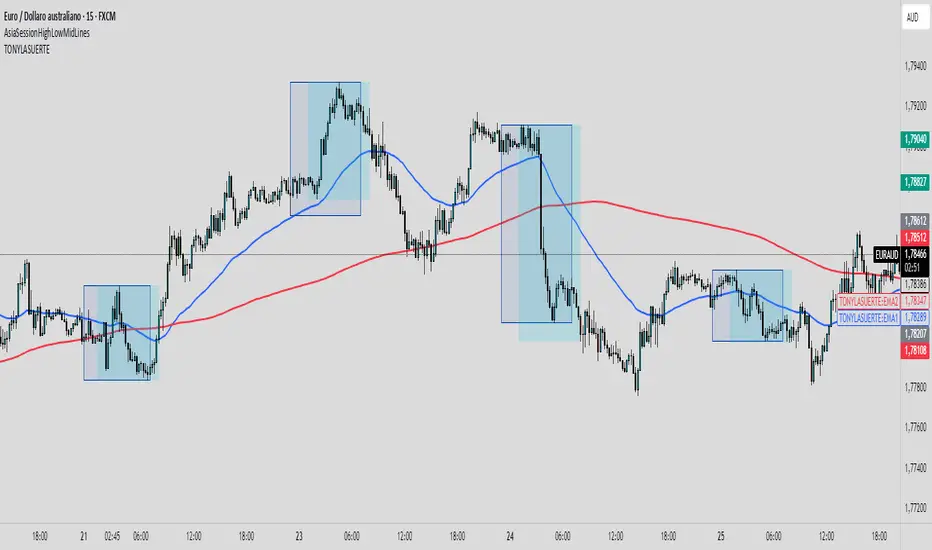
TONYLASUERTEIndicator Description
This indicator is designed to provide a clear market reading by combining trend analysis, low-activity zones, and potential reaction signals:
- Moving Averages (50 and 200 periods): the 50-period (blue) and 200-period (red) moving averages help define the overall market trend while also acting as dynamic support and resistance levels. Their alignment or crossover serves as a key signal for assessing market strength.
- Asian Session Highlighting: the indicator marks rectangles over the Asian session ranges, a phase typically characterized by low volatility and tight ranges. This helps avoid trading in low-interest conditions and focus on more liquid phases.
- Post-Asia Reactions: the imbalance occurring after the Asian session is highlighted, making it easier to spot potential breakout points and the start of directional moves.
- Divergent Candles (visual signals): divergence candles are highlighted with different colors. When combined with the moving averages and the post-Asia imbalance, they can anticipate possible reversals or confirm trend continuation.
📌 Indicator Objective: filter out low-quality trading phases, highlight key reaction zones, and improve entry timing by leveraging the interaction between trend (moving averages), divergences, and post-Asian session dynamics.
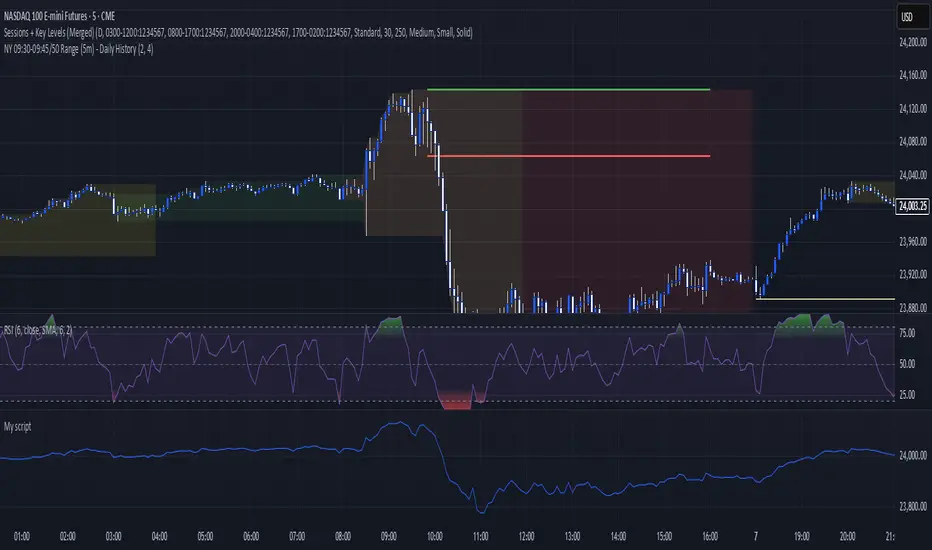
Key levels + Session Range (Sweep-Aware Levels)Overview
This indicator provides a single, clean view of two core intraday contexts that day traders rely on:
Daily Liquidity Levels: prior day high/low (PDH/PDL), prior day open/close, weekly highs/lows, and other commonly referenced reference points.
Session Ranges: clearly plotted high/low for each active session (e.g., Asia, London, New York), tracked live as the session evolves.
By unifying these two information layers, traders can immediately see when price is sweeping a session’s extremes into known daily liquidity—a frequent precursor to reversals or continuation moves. This saves chart space, reduces cognitive overload, and turns two separate checks into one coherent read.
What it does
Plots daily liquidity references: previous day high/low, previous day open/close, and optional higher-timeframe levels (open, high, mid and low 4H ,Day, Week, month, year and quarterly).
Tracks session high/low live: as each session unfolds, the indicator updates that session’s running High and Low, then locks them at session end.
Maps interaction between the two layers: you can instantly spot session sweeps that tag PDH/PDL (or weekly extremes), highlight potential liquidity grabs, and frame risk with objective boundaries.
Keeps the chart clean: just essential lines/zones and concise labels—no extra clutter.
Why it’s useful & original
Single-purpose integration: Rather than a generic mashup, this is a purpose-built fusion where session dynamics are read in the context of daily liquidity. That relationship is the core edge—seeing when a session sweep aligns with known liquidity pools.
Workflow efficiency: One overlay replaces two indicators, simplifying visibility and reducing conflicting visuals.
Decision clarity: The combination highlights setups many intraday traders already watch manually (e.g., NY session high sweep into PDH), but makes them obvious in real time.
How it works (plain-English logic)
Daily Liquidity Engine
At the start of each day, the indicator records PDH, PDL, prior open/close and (optionally) prior week high/low.
These levels are plotted and extended across the session as static references.
Session Range Tracker
For each defined session (e.g., Asia/London/New York), the script initializes session High/Low at session open.
Throughout the session, it updates those extremes in real time and locks them on session close.
Interaction Layer
When price reaches or sweeps a session High/Low near a daily level (e.g., within your chosen tolerance), the confluence becomes visually obvious.
Traders can then decide whether it’s a likely liquidity grab (fade/reversal idea) or a continuation through the pool (breakout idea), per their plan.
How to use it
Identify session context: Start by noting where price is trading relative to the current session’s High/Low.
Locate nearby daily liquidity: Check distance to PDH/PDL, prior open/close, and weekly extremes.
Look for confluence:
Sweep-and-fade idea: Session High swept into PDH (or Session Low into PDL) with failure to hold → potential reversal context.
Break-and-go idea: Strong close through PDH/PDL following a session extreme break → potential continuation context.
Risk framing: Session High/Low and PDH/PDL provide objective anchors for stops and targets. Adapt to your own risk model (e.g., use ATR or structure-based stops).
Keep it clean: Use this as your primary overlay to avoid clutter; add confirmations (volume, structure) only if they genuinely help your process.
Settings (typical options)
Sessions: Choose which sessions to display (e.g., Asia/London/NY) and their time zones/hours.
Daily Levels: Toggle PDH/PDL, prior open/close, prior week High/Low, and other references you rely on.
Visuals: Colors, line styles, label visibility, and optional band shading for quick recognition.
Confluence Tolerance (optional): Define how near a session extreme must be to a daily level to consider it a “liquidity touch/sweep” in your visuals.
Alerts (optional): First touch/sweep of session High/Low, break/close beyond PDH/PDL, or custom distance conditions.
Chart & Publishing Notes (for reviewers and users)
Clean chart by design: Only essential lines/labels for session extremes and daily references.
Plain-English description: Explains what, why, and how so non-coders can use it confidently.
Original integration: The value here is the purposeful interaction—seeing session sweeps in context of daily liquidity in one place—rather than a cosmetic mashup.
Limitations & good practice
This tool is contextual, not predictive. It highlights structure and liquidity landmarks; trade decisions are yours.
Session definitions vary by asset/exchange; ensure your session times match your market.
Past behavior at these levels does not guarantee future outcomes; always use proper risk management.
Disclaimer
This indicator is for educational and informational purposes only and is not financial advice. Trading involves risk; always test and evaluate with your own methods and risk parameters.
Keylevels [KAWS]Overview
The Keylevels Indicator is designed to provide traders with a clear and structured view of important market reference points. It automatically detects and plots session highs and lows, weekly and monthly levels, as well as the previous day’s range. These levels are presented directly on the chart as dynamic lines with optional text labels, offering a consistent framework for understanding price action across multiple time horizons.
Understanding the Concepts
What are Key Levels?
Key levels are significant price points that often serve as reference markers in market activity. They represent areas where the market has previously established boundaries (highs and lows) within sessions, days, weeks, or months. Such levels can highlight where price has repeatedly reacted, providing insight into areas of potential importance.
Why Sessions Matter
Financial markets operate globally, and trading sessions (Asia, London, New York) reflect the activity of different regions. Each session produces distinct highs and lows that can serve as key markers for subsequent price behavior. By capturing these levels automatically, the indicator helps visualize how markets transition from one trading phase to another.
Higher Timeframe Levels
Weekly and monthly highs and lows, as well as the previous day’s range, provide broader structural reference points. These levels are often used to assess whether the market is respecting or breaking significant boundaries over time.
How the Indicator Works
The indicator automatically tracks and plots:
Session Levels: Highs and lows of the Asia, London, and New York sessions.
Session Open Price: A clear reference line marking the opening price of a chosen session.
Daily Levels: Previous day’s high and low, updated at the start of each new day.
Weekly Levels: High and low of the current week, with automatic reset each new week.
Monthly Levels: High and low of the current month, updated dynamically.
Each level is displayed with customizable line styles, colors, and labels. Labels can include text only or also display the exact price, depending on user preference. The indicator further supports the option to extend lines into the future, allowing for ongoing visibility of these reference points.
Customization Options
Display Control: Enable or disable specific sessions, daily, weekly, or monthly levels.
Visual Styling: Adjust line colors, thickness, and style (solid, dashed, dotted).
Labels: Choose whether to display text, include price information, and set text size.
Session Settings: Define your preferred timezone and session open times for accuracy across global markets.
Line Extension: Decide whether levels should extend into the future or stop when broken.
Important Considerations
This indicator is a technical reference tool. It does not generate buy or sell signals but instead provides structural context by highlighting where the market has established significant levels. As with any technical tool, it is most effective when integrated into a broader trading framework that includes market structure, trend analysis, and risk management.

Essa's Sessions IndicatorOverview
This powerful tool is designed to visually map out the key trading sessions: Asia, London, and New York directly on your chart. By highlighting these periods and plotting their respective highs and lows, it helps you identify critical price levels, gauge market sentiment, and pinpoint potential breakout opportunities with ease.
What It Does
Visualizes Key Trading Sessions: Automatically draws colored backgrounds for the Asia, London, and New York sessions to show you exactly when the most important market activity is happening.
Plots Session Highs & Lows: Displays precise horizontal lines for the highest and lowest prices reached during each session, acting as key support and resistance levels.
Dual Timezone Mode: Easily switch between London (GMT/BST) and New York (EST/EDT) timezones with a single click. The indicator automatically adjusts all session times for you, ensuring accuracy no matter where you are.
Interactive & Informative Labels: Hover over any session high or low label to see a detailed tooltip containing:
The exact price level.
The session's price range (calculated in pips or points).
The total daily price range for broader context.
A simple volatility gauge (from "Low Vol 😴" to "High Vol 🔥").
Customizable Alerts: Enable breakout alerts to receive instant notifications the moment the price closes above a session high or below a session low.
Simple, powerful, and highly informative, this indicator is an essential tool for traders looking to build strategies around session-based price action.

LilSpecCodes1. Killzone Background Highlighting:
It highlights 4 key market sessions:
Killzone Time (EST) Color
Silver Bullet 9:30 AM – 12:00 PM Light Blue
London Killzone 2:00 AM – 5:00 AM Light Green
NY PM Killzone 1:30 PM – 4:00 PM Light Purple
Asia Open 7:00 PM – 11:00 PM Light Red
These are meant to help you focus during high-probability trading times.
__________________________________________________
2. Previous Day High/Low (PDH/PDL):
Plots green line = PDH
Plots red line = PDL
Tracks the current day’s session high/low and sets it as PDH/PDL on a new trading day
CHANGES WITH ETH/RTH
3. Inside Bar Marker:
Plots a small black triangle under bars where the high is lower than the previous bar’s high and the low is higher than the previous bar’s low (inside bars)
Useful for spotting potential breakout or continuation setups
4. Vertical Time Markers (White Dashed Lines)
Time (EST) Label
4:00 AM End of London Silver Bullet
9:30 AM NYSE Open
10:00 AM Start of NY Silver Bullet
11:00 AM End of NY Silver Bullet
11:30 AM (Customizable Input)
3:00 PM PM Killzone Ends
3:15 PM Futures Market Close
7:15 PM Asia Session Watch

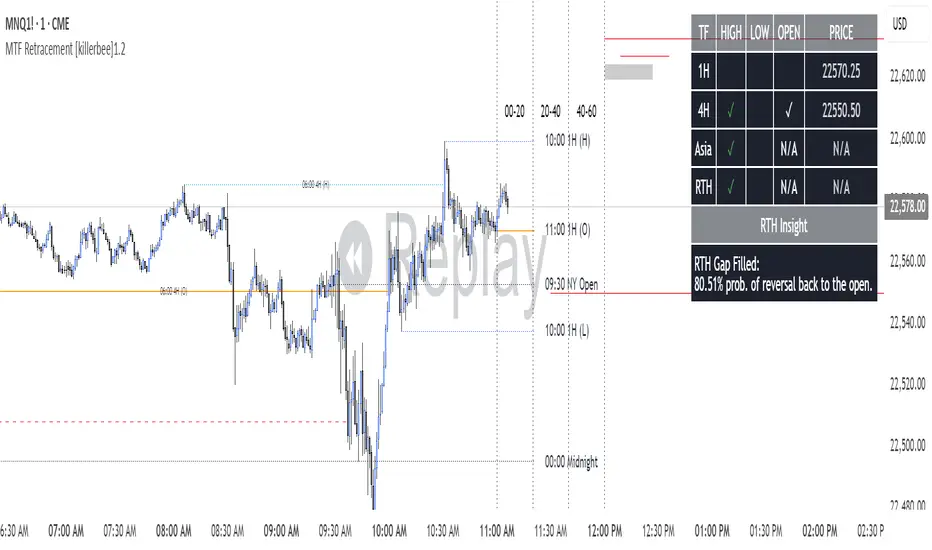
[killerbee] MTF RetracementKey Features
Multi-Timeframe (MTF) Analysis: Plot the high, low, and open from up to four user-defined higher timeframes. This allows you to see the bigger picture and identify key levels that institutional traders are watching.
Dynamic Support & Resistance: Lines are drawn at these key MTF levels and extend until price breaks through them, providing a clean and dynamic view of support and resistance.
Session Highlighting: Automatically draw boxes and high/low lines for the Asia, London, and RTH (Regular Trading Hours) sessions. This helps you understand the context of price action throughout the trading day.
Customizable Opening Price Lines: Pinpoint significant opening prices with dedicated lines for events like the "Midnight Open," "8:30 Open," and "9:30 Open."
"NQ STATS TABLE": A powerful statistical table that provides real-time insights:
Break/Hit Confirmation: Instantly see when a key MTF high/low has been broken or when an opening price has been retraced to.
9 AM Directional Bias: A bullish or bearish bias based on the close of the 9 AM (New York time) hourly candle.
Historical Probabilities: The table displays historical probabilities for price to either break a previous high/low or retrace to the open, based on the current hour of the trading session.
Extensive Customization: Nearly every visual aspect of the indicator can be customized to your preference, including colors, line styles, visibility of each component, and the position of the stats table.
How to Use
Identify Key Levels: The lines from the higher timeframes (HTF1, HTF2, etc.) represent significant support and resistance. Pay close attention to these levels as price approaches them.
Look for Breaks and Retracements:
When a high or low line is broken, the line will stop extending. This can signal a shift in market structure and a potential continuation in the direction of the break.
The "Open Line" for each timeframe represents the opening price. When the line stops extending, it means price has retraced back to that open, a common occurrence in the market.
Utilize the Sessions:
The Asia, London, and RTH boxes help you frame your trading day. The highs and lows of these sessions are often critical levels of support and resistance.
Breakouts from these session ranges can lead to strong directional moves.
Leverage the STATS TABLE:
Use the "Break" and "Hit" columns to quickly confirm when key levels have been breached or revisited.
The "Direction" row gives you a quick sentiment reading based on the 9 AM candle.
The "Trades Back %" and "High/Low Forms" provide a statistical edge by showing you the historical likelihood of certain price behaviors based on the time of day. This can help you decide whether to play for a breakout or a retracement.
Multi-VWAP System🚀 Multi-VWAP System — Anchored VWAP & Deviation Bands
Overview
The Multi-VWAP System provides traders with a professional-grade approach to anchored VWAP analysis. Inspired by Brian Shannon's pioneering work on Anchored VWAP, this indicator automatically calculates and plots:
Current Session VWAP
Previous Session VWAP (also known as "2-Day VWAP")
High-of-Day (HOD) Anchored VWAP
Each VWAP can also display optional Standard Deviation Bands to highlight statistically significant deviations from the volume-weighted average price.
🔍 Why Anchored VWAP Matters
Volume Weighted Average Price (VWAP) is among the most critical institutional indicators, as it represents the average price paid for a stock adjusted by trading volume. This makes VWAP crucial for identifying fair value and significant areas of institutional activity.
Institutions utilize VWAP extensively to guide their execution algorithms. For instance, if price dips below a 2-day anchored VWAP (anchored to the previous session's open), many institutions interpret this as a discounted entry, potentially triggering large-scale buy programs. Conversely, sustained movement above VWAP signals strong buying pressure and bullish sentiment.
📌 Why Multiple Anchors?
Traders commonly anchor VWAPs at critical reference points:
Current Session VWAP:
Essential for day traders as a reference for intraday sentiment. Price action above this line generally indicates bullish sentiment, while price below signals bearish sentiment.
Previous Session (2-Day) VWAP:
Heavily used by institutions and swing traders, it provides insight into multi-session sentiment. Institutions commonly activate buy or sell programs based on whether price is trading at a premium or discount relative to this VWAP.
High-of-Day (HOD) VWAP:
Frequently used by momentum traders, this anchor captures sentiment after the most recent intraday high. Price above the HOD VWAP suggests sustained bullish momentum, while price below might signal weakening momentum.
🌟 Standard Deviation Bands
Each anchored VWAP in this indicator includes optional Standard Deviation Bands, highlighting statistical extremes. Traders use these bands to:
Identify potentially overextended moves (beyond +2σ or +3σ).
Gauge momentum strength (holding above +1σ).
Spot mean-reversion setups when price returns to VWAP after extreme moves.
🎨 Dynamic Background and Momentum Colorization
To visually highlight strength or weakness in price action relative to VWAP:
Dynamic Background Fill between Current and Previous VWAPs:
Green background appears when the Current VWAP is above the Previous VWAP and the linear regression slope (adjustable length) is positive, indicating bullish sentiment.
Red background appears when the Current VWAP is below the Previous VWAP and the slope is negative, indicating bearish sentiment.
No fill when conditions are mixed or momentum is uncertain.
Gold Fill above HOD VWAP:
When price action is above the High-of-Day VWAP and momentum (linear regression slope) is positive, a subtle gold shading appears, quickly highlighting bullish momentum.
⚙ Fully Customizable Settings
Session Times: Adjust session start and end times to match your specific market hours.
Standard Deviation Bands: Enable or disable each VWAP’s deviation bands individually and select how many bands (1σ, 2σ, or 3σ) you'd like to display.
Momentum Slope Length: Adjustable lookback for linear regression slope calculation—giving you full control of trend sensitivity.
🎯 Who Should Use This Indicator?
This indicator is perfect for:
Day Traders who want quick insights into intraday sentiment shifts.
Swing Traders tracking institutional footprints and seeking optimal entry/exit points.
Momentum Traders who rely on clearly visible momentum signals from HOD anchored VWAPs.
Institutional Traders and Professionals seeking sophisticated, institutionally-inspired VWAP analysis without manual anchoring.
📈 Summary of Features
✅ Automatic VWAP Anchors (Current Session, Previous Session, High-of-Day)
✅ Optional Standard Deviation Bands for each VWAP anchor
✅ Dynamic Background Coloring based on price action and momentum conditions
✅ Gold Momentum Highlight for quick bullish momentum identification above HOD VWAP
✅ Fully Customizable Inputs for precise personalization and flexibility
📢 Conclusion
The Multi-VWAP System isn't just another VWAP indicator. It's an institutional-level, dynamic, multi-dimensional analysis tool inspired by the work of Brian Shannon and leading institutional traders. It takes the guesswork out of anchoring and analysis, leaving you free to focus on identifying and executing high-probability trade setups.
Enjoy trading smarter—not harder. Happy Trading! 🚀📊

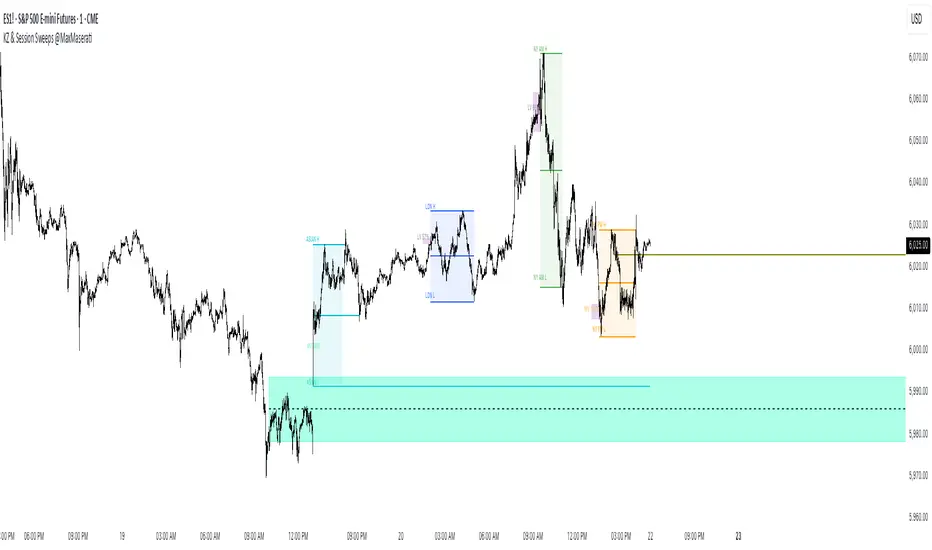
ICT Killzones Bias & Volume Sweeps @MaxMaserati📌 Overview
This indicator helps traders identify key ICT Killzones (Asian, London, NY AM, NY PM sessions) along with volume analysis and sweep detection. It highlights institutional order blocks, tracks session bias, and detects liquidity sweeps with volume confirmation.
Key Features:
✅ ICT Killzones (Asian, London, NY AM, NY PM)
✅ Volume Analysis (High/Low volume detection)
✅ Sweep Detection (Buyside/Sellside sweeps with volume confirmation)
✅ Session Bias (Bullish/Bearish bias based on price action)
✅ Customizable Sessions (Add personal trading hours)
✅ Institutional Order Build-up (30-min pre-session accumulation zones)
⚙️ Input Settings
1. Timezone Settings
Chart Timezone: Adjust to your local timezone (default: New York).
2. Session Toggles
Asian / London / NY AM / NY PM Sessions: Enable/disable each session.
NY Lunch Session: Optional session (disabled by default).
Personal Trading Time: Customize your trading hours.
3. Label Settings
Label Size: Tiny, Small, Normal, Large.
Session Labels: Customize text for High (H), Low (L), Mid (M) labels.
Background Transparency: Adjust session box opacity.
4. Volume Analysis
Show Volume Labels: Displays volume strength (🚀 Very High, 🔥 High, ⚖️ Normal, 💤 Low, 🐢 Very Low).
Volume Lookback Period: Adjusts volume comparison window.
High/Low Volume Thresholds: Define what constitutes high/low volume.
5. Sweep Detection
Buyside/Sellside Sweeps: Highlights liquidity sweeps.
Sweep Margin: Adjust sensitivity for sweep detection.
Fake Sweep Zones: Option to hide or highlight fakeouts.
Example of Session Sweep and Volume:
Here we have a Bullish Sweep of London Low session by NY AM
However, the volume was low suggesting buyers are not strong enough (M1)
And then the sellers took over and a pressure retest by the buyers of the level and then sellers entered with more power/pressure
6. Session Momentum & Bias
Show Session Bias: Indicates bullish/bearish bias for each session.
Bias Strength Threshold: Adjust sensitivity for bias detection.
📊 How It Works
1. Session Highs/Lows
The indicator tracks High, Low, and Mid prices for each session.
Lines and boxes are drawn to visualize the session range.
2. Volume Analysis
Compares current volume to historical average.
Displays volume strength with emojis (🚀, 🔥, ⚖️, 💤, 🐢).
Highlights high-volume sweeps for confirmation.
3. Sweep Detection
Detects buyside sweeps (liquidity above highs) and sellside sweeps (liquidity below lows).
Sweep zones expand if price lingers near the swept level.
4. 30 minute Pre-session Institutional order buildup
Highlights 30-minute pre-session zones where institutions may accumulate orders.
5. Session Bias
Calculates bias based on open/close price action within the session.
Displays Bullish, Bearish, or Neutral labels.
]
🎯 Trading Applications
1. Liquidity Sweeps
Look for sweeps with high volume as confirmation of institutional activity.
Fade fake sweeps (if enabled) when price reverses quickly.
2. Session Breakouts
Trade breakouts from Asian/London ranges during NY sessions.
Watch for volume expansion on breakouts for confirmation.
3. Pre- Session Institutional Block
Price often reacts to pre-session institutional position build-up (30-min before session opens).
LV:Low Volume, HV: High volume and MV: Medium Volume
NY AM Pre-Session institutional Order Build-up block with high sweep
🔧 Customization Tips
Adjust session times to normal future sessions to match your trading style.
Modify sweep sensitivity if too many/too few sweeps are detected.
Use volume thresholds to fine-tune high/low volume alerts.
📌 Final Notes
This indicator combines ICT concepts with volume analysis for a powerful trading edge. Use it alongside price action and market structure for best results at your own risk.
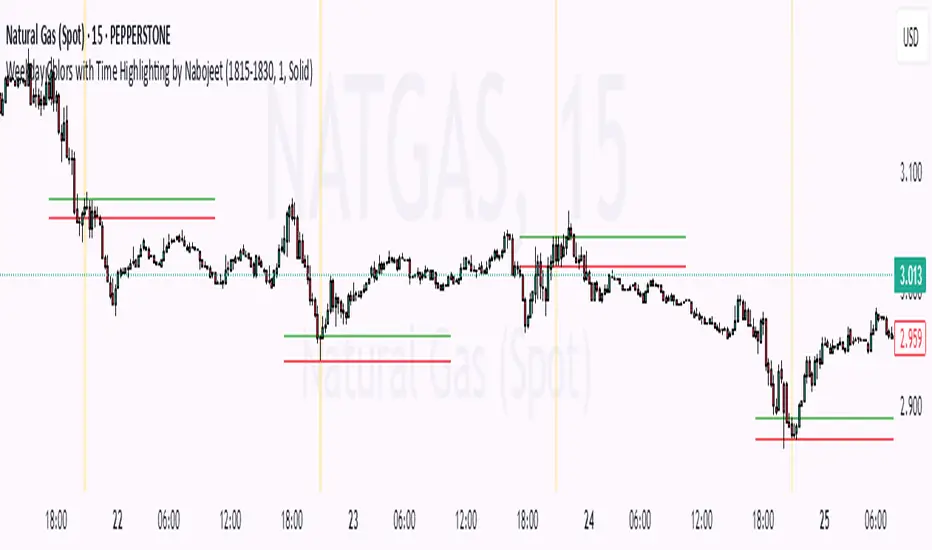
Weekday Colors with Time Highlighting by NabojeetThis script is a Pine Script (version 6) indicator called "Weekday Colors with Time Highlighting" designed for TradingView charts. It has several key functions:
1. **Weekday Color Coding**:
- Assigns different background colors to each trading day (Monday through Friday)
- Allows users to customize the color for each day
- Includes toggles to enable/disable colors for specific days
2. **Time Range Highlighting**:
- Highlights a specific time period (e.g., 18:15-18:30) on every trading day
- Uses a custom color that can be adjusted by the user
- The time range is specified in HHMM-HHMM format
3. **High/Low Line Drawing**:
- Automatically identifies the highest high and lowest low points within the specified time range
- Draws horizontal lines at these levels when the time period ends
- Lines extend forward in time to serve as support/resistance references
- Users can customize the line color, width, and style (solid, dotted, or dashed)
The script is organized into logical sections with input parameters grouped by function (Weekday Colors, Weekday Display, Time Highlighting, and Horizontal Lines). Each section's inputs are customizable through the indicator settings panel.
This indicator would be particularly useful for traders who:
- Want visual distinction between different trading days
- Focus on specific time periods each day (like market opens, closes, or specific sessions)
- Use intraday support/resistance levels from key time periods
- Want to quickly identify session highs and lows
The implementation resets tracking variables at the beginning of each new time range and draws the lines once the time period ends, ensuring accurate high/low marking for each day's specified time window.
Author - Nabojeet
Exchange and Symbol by BULL┃NETThe B | N EXSY (Exchange and Symbol by BULL | NET)
indicator provides traders using CFD brokers with the most significant price and time events from the stock exchange of the underlying original index or security. For example traders are able to easily identify the price at the Daily Open and Close time of up to three additional stock exchanges. Traders can choose from a huge list of options including the values from the current and previous Day, Week, Month and Year. In addition traders can enable the display of the Expected Move by either implied or historical volatility. The indicator can show Open Gaps (gap between close and open of two trading sessions) also which traders would usually see only on the original chart of an index or security.
The B | N EXSY indicator can help traders to make better entry decisions based on the real market sessions.
█ ⚠️ DISCLAIMER – READ BEFORE YOU USE ⚠️
█ CONCEPTS
CFD Brokers allow you to trade many indices, securities and assets up to 24 hours per day and 7 days per week (24/7). Other than Crypto Assets indices and securities get the highest transaction volume during the session of a stock market. Most importantly while its “Home Stock Market” is open.
For example the NASDAQ or S&P500 will see the highest volume during the business hours of the New York Stock Exchange (NYSE) between 9:30am and 4:00pm (America New York Time). Most CFD Providers however will open their Trading session approximately 9.5 hours before the NYSE opens and even 2 hours before Japan and Australia open the markets.
The German DAX on the other hand is listed on the Deutsche Börse Xetra which is open from 9:00 to 17:00 (Europe Berlin Time). CFD Brokers will open the DAX for trading differently between 9 and 5.5 hours before the XETRA opens.
Therefore most available indicators for visualizing the day open will show different results. Traders at Broker A will tell a totally different story than traders at Broker B who opened 3 hours later.
Furthermore people trading the NASDAQ often keep an eye on the London Stock Exchange (LSE) as well and those trading the NIKKEI often watch the NYSE besides its home at the Japan Exchange Group (JPX).
Advanced traders know about the importance of those information and I have seen thousands of charts where people draw horizontal lines to mark the open and closing prices as well as the session highs and lows. They do it every day and often for different indices and securities. A time consuming job.
Here is where B | N EXSY steps in to give traders objective information for Intraday trading (Daily timeframe and below). More or less automatically. Choose your primary stock exchange (e.g. the NYSE if you trade the NASDAQ) and optionally a second and third stock exchange you are interested in. Individually select the price events you like to see or keep the defaults. Make your own cosmetic decision on how you want the data to be displayed. Save your chart and you will never have to draw a horizontal line again to see the High of the current session, the Low of last week, the monthly Open or yesterdays Close. Sharing ideas with other traders in the chat groups will be easy because everyone is relying on the same information. Even across different CFD Brokers (with slightly different prices of course). Your Technical Analysis can become much more efficient.
█ FEATURES
B | N EXSY is highly customizable. The default settings are optimized for the NASDAQ during the NYSE session. Following you get an overview of all options in the settings menu.
— LOWER TIMEFRAME
The “Lower Timeframe in Minutes” defaults to 30 minutes and should work with most CFD Brokers and stock exchanges. If not you will get a huge warning on the chart suggesting different settings. If e.g. a CFD Broker opens the Dax session at 3:15 but the XETRA opens at 9:00 you have to change the setting to 15.
— STOCK EXCHANGE
Primary is mandatory and defaults to NYSE (New York Stock Exchange) which is the home of the NASDAQ, the S&P 500, the Dow Jones and many others. Usually you select the home stock exchange of the instrument you trade. E.g. XETRA for the DAX, JPX for the NIKKEI or HKEX for the HANG SENG.
The Second and Third stock exchange is optional and defaults to NONE. If e.g. you trade Nvidia with NYSE as the primary stock exchange and you are interested in the High and Low of the European Session select LSE (London Stock Exchange) or XETRA (Deutsche Börse Xetra) as the second stock exchange. By default the indicator will show only information about the current day and week for the second and third stock exchange but you can change that later.
— VISUALIZE SESSIONS
Beginners and less advanced traders sometimes want to see the time span of a session. By default this feature is disabled because it adds more noise to the chart. You can select each of the three stock exchanges individually and select your preferred color.
— CUSTOM STOCK EXCHANGE
Whether your preferred Stock Exchange is missing in the dropdowns or you have a special purpose (see the HOW TO USE section) you can add your own ”Stock Exchange” to the chart.
Name and Country are optional and get displayed in tooltips only. Opening, Closing and Timezone are important. Enter the Open and Close time as HOUR:MINUTE in 24 hour notation (22:00 instead of 10:00pm). The timezone can be provided as time offset in GMT or UTC notation (e.g. GMT+2 or UTC-5) or as a time zone name listed in the IANA Time Zone Database ( e.g. "America/New_York" or “Europe/Berlin”). If you do it wrong the indicator will give wrong results or don’t work at all.
— EXPECTED MOVE IMPLIED VOLATILITY
With this setting you can enable the calculation and display of the Expected Move (EM). Option and Future traders should be familiar with this feature. Those who never heard about should read about it on the internet. Your favorite search engine will provide you with lots of information about it.
After enabling the feature you have to select a source to calculate the EM. The drop down menu contains popular sources and are named after the indices they are based on. It is crucial that the setting match the index, symbol or asset you are trading. If e.g. you are trading a CFD for the NASDAQ you have to select Nasdaq as source. Wrong settings will lead to wrong calculations.
If the source you need is missing you select manually and enter the implied Volatility in the field “Value for manual calculation”. If e.g. you trade the Nikkei you have to enter the current value of the JNIV manually because it is not listed at TradingView so I can’t add it.
The other settings control the Line Color and Style, the Label Color and Size as well as the Text Color.
The indicator will display the EM+ and EM- as well as the 2 and 3 Sigma EM +/-. On the Daily Chart it will display the Weekly Expected Moves. On any timeframe below you will get the Daily Expected Moves.
— EXPECTED MOVE HISTORICAL VOLATILITY
Other than the feature above, this one calculates the EM based on historical volatility.
After enabling the feature you have to enter the amount of days to look back to calculate volatility. Like you would do for a SMA, EMA or RSI. The default is 10 days. Depending on what asset you trade you might play a little with this setting.
The other settings control the Line Color and Style, the Label Color and Size as well as the Text Color.
Like with the Expected Move Implied Volatility this setting will show weekly data on the daily timeframe and daily information on intraday timeframes.
— LABEL AND LINE COSMETICS
The settings in this section control how lines and labels get positioned on the chart and which information the labels show.
● Bar Offset
The bar offset controls the horizontal distance to the last bar on the chart where lines end. By default it is “2” bars to the right. If you use other indicators which show information on the right side you can increase this value to avoid overlapping.
● Bar Anchor
The bar anchor controls where lines start. Default is “lastbar”.
Lastbar sets the start of lines to the last bar of the chart. This provides a very clean chart without lines crossing bars to the left.
Moving sets lines to start at the bar at which the price event occurred. The line for the daily open (DO) price will stay at the opening bar of the stock market and it will do so when it becomes the previous day open (PDO) the next day. The line that marks the session High (DH) will be anchored to the highest bar while the stock market is open. Therefore it might be moving with the advancing chart. The same counts for the session Low (DL). The next day these lines become the previous day high or low (PDH / PDL) and stay at the highest/lowest bar from the day before. This logic is forwarded to all other lines (weekly, monthly, yearly). This gives traders a quick orientation on which bar a price event occurred but a less clean chart.
If you choose Day as bar anchor all lines will start at the beginning of the Brokers trading session in which the price event took place. This is also true for the roll over event when e.g. the Week Open (WO) will become the Previous Week Open (PWO) next Week. Unlike the “moving” setting the new WO and PWO will be anchored to the beginning of the Week. Traders will have a box like view into the past.
● Label Distance Divisor
This setting is used to calculate the minimum vertical distance of labels in means of price points. The internal formular takes the day close price and divides it by the number entered in this field. If e.g. the daily closing price was 5000 the minimum vertical distance would become 1 price point if you enter 5000 for this setting. If the price difference of two events would then be less than 1 the labels would be positioned higher and lower to prevent overlapping. The default value is fine for the Nasdaq (~ 19000 / 5000 = 3.8 at the time of writing). For other indices, securities and assets you should change the divider to your likings or as needed to set the trigger for repositioning labels.
● Distance Modifier
This setting is used to control the vertical shift of the label. The default of Zero disables the setting and activates an internal function which makes a decision based on the used timeframe on the chart (0.1 less than m30, 0.5 from m30 to h4, 0.75 above h4 and 1 for daily). The logic takes the minimum vertical distance and multiplies it by the distance modifier.
In the example above for the label distance divider a label would shift by 1.9 price points on a 30 minute chart if two lines trigger the minimum vertical distance. On the upper line the label moves up and on the lower line it moves down. If three lines are too close to each other the label in the middle does not get moved. If more lines break the minimum distance some labels will overlap until the price is advancing. Those events happen most likely during the opening of a stock exchange.
Price events with equal price, e.g. Day and Week Open at the start of a new week or Day, Week, Month, Year High in the event of a new ATH will get lined up (stacked) horizontally.
While this cosmetic corrections have limits overlapping can be reduced to a minimum.
● Show Price
● Show Exchange
Labels can show up to three information. The price, the stock exchange and the event. The event however can’t be disabled. If you select both options you will see something like
5347.84 for the Day Close of the S&P 500 on the New York Stock Exchange
With this two settings you can disable the display of price and/or stock exchange.
If you have chosen to use more than one stock exchange the setting for “Show Exchange” will be ignored. Otherwise you would not know which Day Close (DC) or Day High (DH) belongs to which stock exchange
● Enable Tooltip
If you decide to hide the price and/or exchange on the label it can be useful to get this information in a tooltip while hovering with the mouse over the label. On the contrary it might become annoying with labels popping up if you have a nervous mouse finger. The feature is disabled by default.
● Equalize Label Size
The size of labels is one of the most discussed issues. Some say it is too small other say it is too big. Label size matters on different devices. “Normal” labels can be too large on a smartphone and too small on a 4k display. And the size is crucial for the automatic horizontal stacking of labels. You simply can’t line up a small, normal and large label in Pine Script (the programming language at TradingView). The stacking is done by prepending labels with spaces to shift them to the right.
This setting overloads all individual size settings for the price events below and activates the automatic horizontal stacking of labels with equal price. It is a convenient way to change the size of all labels with one click in case you have different layouts for different devices.
If you disable this feature you can set the label size individually but you lose the horizontal stacking. This can be useful for traders who display only a few price events or for educational purpose where you want to point out a special event.
— CURRENT DAY
This setting controls which price events of the current day (current session) get displayed and how they appear.
Primary O/C
Enable the Day Open (DO) and Close (DC) for the primary stock exchange. Enabled by default.
Primary H/L
Enable the Day High (DH) and Low (DL) for the primary stock exchange. Enabled by default.
Other O/C
Enable the Day Open (DO) and Close (DC) for the second and third stock exchange. Enabled by default.
Other H/L
Enable the Day High (DH) and Low (DL) for the second and third stock exchange. Enabled by default.
The settings below control the Line Color and Style, the Label Color and Size as well as the Text Color.
— PREVIOS DAY
This setting controls which price events of the previous day get displayed and how they appear.
Primary O/C
Enable the Previous Day Open (PDO) and Close (PDC) for the primary stock exchange. Enabled by default.
Primary H/L
Enable the Previous Day High (PDH) and Low (PDL) for the primary stock exchange. Enabled by default.
Other O/C
Enable the Previous Day Open (PDO) and Close (PDC) for the second and third stock exchange. Disabled by default.
Other H/L
Enable the Previous Day High (PDH) and Low (PDL) for the second and third stock exchange. Disabled by default.
The settings below control the Line Color and Style, the Label Color and Size as well as the Text Color.
— OPENING HOUR
This setting controls whether and how to display the famous opening hour (High and Low within the first 60 minutes after stock market opens)
Primary Cur
Display the Current Day Opening Hour High (OH) and Low (OL) for the primary stock exchange. Enabled by default.
Primary Pre
Display the Previous Day Opening Hour High (POH) and Low (POL) for the primary stock exchange. Enabled by default.
Other Cur
Display the Current Day Opening Hour High (OH) and Low (OL) for the second and third stock exchange. Disabled by default.
Other Pre
Display the Previous Day Opening Hour High (POH) and Low (POL) for the second and third stock exchange. Disabled by default.
The settings below control the Line Color and Style, the Label Color and Size as well as the Text Color.
— CURRENT WEEK
This setting controls which price events of the current week get displayed and how they appear.
Primary O/C
Enable the Week Open (WO) and Close (WC) for the primary stock exchange. Enabled by default.
Primary H/L
Enable the Week High (WH) and Low (WL) for the primary stock exchange. Enabled by default.
Other O/C
Enable the Week Open (WO) and Close (WC) for the second and third stock exchange. Enabled by default.
Other H/L
Enable the Week High (WH) and Low (WL) for the second and third stock exchange. Enabled by default.
The settings below control the Line Color and Style, the Label Color and Size as well as the Text Color.
— PREVIOUS WEEK
This setting controls which price events of the previous week get displayed and how they appear.
Primary O/C
Enable the Previous Week Open (PWO) and Close (PWC) for the primary stock exchange. Enabled by default.
Primary H/L
Enable the Previous Week High (PWH) and Low (PWL) for the primary stock exchange. Enabled by default.
Other O/C
Enable the Previous Week Open (PWO) and Close (PWC) for the second and third stock exchange. Disabled by default.
Other H/L
Enable the Previous Week High (PWH) and Low (PWL) for the second and third stock exchange. Disabled by default.
The settings below control the Line Color and Style, the Label Color and Size as well as the Text Color.
— CURRENT MONTH
This setting controls which price events of the current month get displayed and how they appear.
Primary O/C
Enable the Month Open (MO) and Close (MC) for the primary stock exchange. Enabled by default.
Primary H/L
Enable the Month High (MH) and Low (ML) for the primary stock exchange. Enabled by default.
Other O/C
Enable the Month Open (MO) and Close (MC) for the second and third stock exchange. Disabled by default.
Other H/L
Enable the Month High (MH) and Low (ML) for the second and third stock exchange. Disabled by default.
The settings below control the Line Color and Style, the Label Color and Size as well as the Text Color.
— PREVIOUS MONTH
This setting controls which price events of the previous month get displayed and how they appear.
Primary O/C
Enable the Previous Month Open (PMO) and Close (PMC) for the primary stock exchange. Enabled by default.
Primary H/L
Enable the Previous Month High (PMH) and Low (PML) for the primary stock exchange. Enabled by default.
Other O/C
Enable the Previous Month Open (PMO) and Close (PMC) for the second and third stock exchange. Disabled by default.
Other H/L
Enable the Previous Month High (PMH) and Low (PML) for the second and third stock exchange. Disabled by default.
The settings below control the Line Color and Style, the Label Color and Size as well as the Text Color.
— CURRENT YEAR
This setting controls which price events of the current year get displayed and how they appear.
Primary O/C
Enable the Year Open (YO) and Close (YC) for the primary stock exchange. Enabled by default.
Primary H/L
Enable the Year High (YH) and Low (YL) for the primary stock exchange. Enabled by default.
Other O/C
Enable the Year Open (YO) and Close (YC) for the second and third stock exchange. Disabled by default.
Other H/L
Enable the Year High (YH) and Low (YL) for the second and third stock exchange. Disabled by default.
The settings below control the Line Color and Style, the Label Color and Size as well as the Text Color.
— PREVIOUS YEAR
This setting controls which price events of the previous year get displayed and how they appear.
Primary O/C
Enable the Previous Year Open (PYO) and Close (PYC) for the primary stock exchange. Enabled by default.
Primary H/L
Enable the Previous Year High (PYH) and Low (PYL) for the primary stock exchange. Enabled by default.
Other O/C
Enable the Previous Year Open (PYO) and Close (PYC) for the second and third stock exchange. Disabled by default.
Other H/L
Enable the Previous Year High (PYH) and Low (PYL) for the second and third stock exchange. Disabled by default.
The settings below control the Line Color and Style, the Label Color and Size as well as the Text Color.
— ALL TIME HIGH
This setting controls whether the All Time High gets displayed on the daily chart and how it appears. See the limitations section (Amount of data) for details why the ATH will be displayed in the daily timeframe only.
Primary ATH
Enable the All Time High (ATH) for the primary stock exchange. Enabled by default.
OTHER ATH
Enable the All Time High (ATH) for the second and third stock exchange. Enabled by default.
The settings below control the Line Color and Style, the Label Color and Size as well as the Text Color.
— GAPFINDER
If you look at the original charts of an index (not the CFD Broker chart) you will see mostly every day a price difference between the closing price of the last session and the opening price of the current session. There are many names for those gaps. I call them Open Gaps or Kassa Gaps. Advanced traders know the market tends to close those gaps more or less quickly. Which is one more reason to know where the real previous day close was.
There are market conditions where those gaps are not closed within the new session. Those gap leftovers will usually be closed in the future. Some earlier, some later. If those gaps get more and more you quickly lose track and if the time comes to close one of the gaps you might not remember or recognize the price has reached an old gap. The charts of CFDs don’t even show such gaps due to the fact they trade nearly 24 hours per day.
The Gapfinder will display such leftovers after the end of the next session. If e.g. the previous day close was at 18000 and the market opens the next session at 18200 we have an Open Gap of 200 price points. If the Low of this session is 18100 after the session closes there would be rest gap of 100 price points. The Gapfinder then would mark it with a rectangle colored according to the direction of the Gap.
Bullish gaps result from an opening price (DO) and the current Day Low (DL) being higher than the previous day close (PDC).
Bearish gaps arise from an opening price (DO) and the current Day High (DH) being lower than the previous day closing price (PDC).
If you like you can change the color for the gaps and the text color.
— MISCELLANEOUS
To streamline the appearance of prices they are set to display two decimals only. Numbers get rounded! However, trading currency pairs or crypto assets might need to display the full amount of decimals. In that case simply disable the setting “2 Decimals”.
By default the indicator will display a small table in the lower right corner of the chart. It contains information about the current symbol, the selected primary stock exchange and the volatility. If you don’t like or need it you can disable it.
The “Unreliable Data” checkbox usually should not affect you. But if it does it can be really helpful. The B | N EXSY indicator uses Lower Timeframe Data to match CFD Broker and Stock Exchange opening times. If e.g. a CFD Broker opens at 0:00 and the stock exchange at 9:30 the script uses data from the 30 Minutes timeframe if you view the chart at any timeframe higher than 30 Minutes. Why? Because if you chose a four hours timeframe there is simply no bar that starts at 9:30 in this case. The CFD brokers h4 bars will start at 0:00, 4:00, 8:00, 12:00 and so on.
Sometimes the data stream of the Broker and TradingView get out of sync and a 4 hour bar eventually returns just 6x 30 Minutes instead of 8. During development of the indicator I came across of at least two brokers with such an issue. Only in one time frame and a specific period of time. If this happens the price information might be wrong. A Day High might be to low, a Day Close missing or the Day Open not be found. In such cases your trade might fail. To prevent such situations the indicator performs a daily consistency check at 12:00 during the session for an exchange in its time zone if this option is enabled.
In case the data are found unreliable you will see a label above the bar with further information in the tooltip of the label. You should than compare the information from this timeframe with the lower timeframe selected in the field below. Anway, it is a rare issue and if you, like me, work on multiple timeframes in parallel this bug probably won’t affect you.
— HOLIDAYS
● Holidays
If there is a holiday on a stock market the original chart of an index will simply show no bars for that day. CFD Broker charts will only show no bars if it is an international holiday or the broker itself is affected by the holiday. Take for example Memorial Day in the U.S. Although the NYSE is closed you can trade e.g. the NASDAQ until around 17:30 European Time which is the closing time of the LSE and XETRA. Unfortunately the closing time in Europe is after the opening time in the U.S. If the price goes up in the overlapping time you eventually see a new Weekly High (WH) if you rely on the chart of the CFD Broker. To avoid such misleading information the B | N EXSY indicator allows you to enter holidays for each stock market individually. If the indicator finds a holiday it will not store or add data for this day.
By default there are already the market holidays entered for the NYSE, XETRA, FSX and LSE in 2024. If you want to add your own holidays you have to follow some simple rules:
1. The entry must start in a new line below existing entries (carriage return)
2. The entry starts with the shortcut of the stock exchange exactly as you see them in the dropdown menu.
3. The stock exchange gets separated from the holidays with a colon (:)
4. Each holiday is entered as YYYY-MM-DD
5. Holidays get separated with a single whitespace
The entry for the Japan Exchange Group (JPX) in 2025 would start with:
JPX: 2025-01-01, 2025-01-02, 2025-01-03, 2025-01-08
Completed by the rest of the holiday.
If you make your own entries please keep a copy of the line you added because it will be replaced by the defaults if the indicator gets an update. Best practices would be to provide your holiday string in the comment section and I add it as a default.
● Early Close
Some stock exchanges close the market early before some holidays. In that case the indicator won’t be able to fetch the closing price for that day and the daily roll over won’t work for the day after the holiday. To prevent chaos you can enter the days with early close in this field.
By default the early closing days of the NYSE are already entered. If you want to add your own early closing days you have to follow some simple rules:
1. The entry must start in a new line below existing entries (carriage return)
2. The entry starts with the shortcut of the stock exchange exactly as you see them in the dropdown menu.
3. The stock exchange gets separated from the days with a colon (:)
4. Each early closing day is entered as YYYY-MM-DD-HH-MM where HH-MM is the closing time of this day entered in 24 hours format in the timezone of the stock exchange
5. Days get separated with a single whitespace
The entry for the day before Thanksgiving at the NYSE in 2025 would be:
NYSE:2025-11-25-13-00
This is because the market will close early at 1:00 PM on November 25, 2025, the day before Thanksgiving. The time is provided in 24-hour format as 13:00.
-------------------------------------------------------
Disclaimer BullNet: The information provided in this document is for educational and informational purposes only and does not constitute financial, investment, or trading advice. Any use of the content is at your own risk. No liability is assumed for any losses or damages resulting from reliance on this information. Trading financial instruments involves significant risks, including the potential loss of all invested capital. There is no guarantee of profits or specific outcomes. Please conduct your own research and consult a professional financial advisor if needed.
Disclaimer TradingView: According to the www.tradingview.com
Copyright: 2025-BULLNET - All rights reserved.
Roadmap:
Version 1.0 03.03.2025
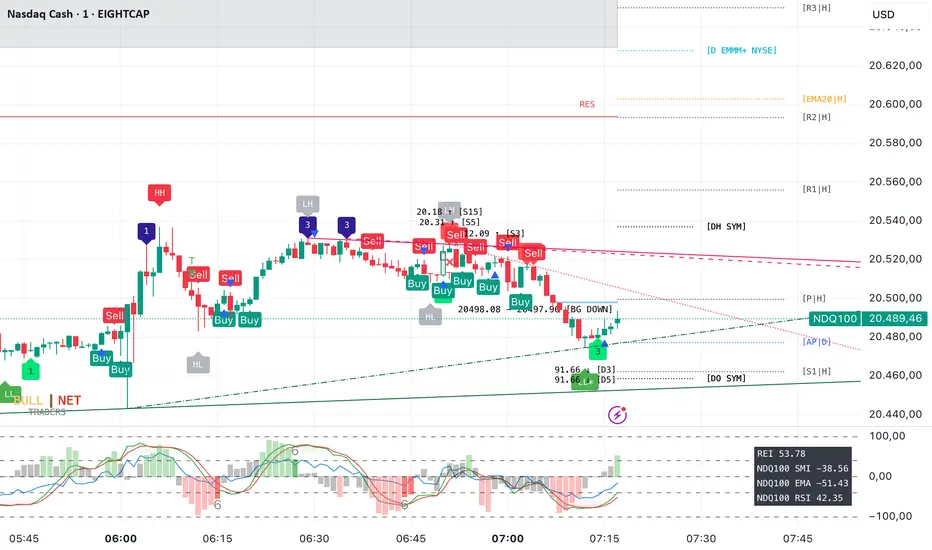
ICTProTools | ICT Insight - Time & Price Zones🚀 INTRODUCTION
The Time and Price Zones indicator builds upon the foundational concepts of ICT (Inner Circle Trader) and Smart Money Concepts (SMC). These methodologies analyze the behavior of institutional traders (known as "smart money") by focusing on liquidity, key price levels, and market timing.
Liquidity refers to areas with high concentrations of pending orders (stops, take-profits, entries) in the market. Large institutions efficiently need to execute their massive orders without causing excessive slippage. To achieve this, they strategically create and exploit liquidity pools by driving the price toward areas where retail traders cluster their positions.
Then, through "liquidity grabs" or "stop hunts,” institutions accumulate or distribute positions at optimal prices . This strategy allows them to fill large orders with minimal market impact, typically clearing out retail traders' positions before the price reverses.
This indicator helps traders apply these principles by merging time-based and price-based analysis tools for better market understanding. By combining high-impact sessions like Kill Zones with pivotal price markers such as Previous Highs and Lows, traders can see where institutional activity intersects with liquidity pools, improving their decision-making.
This powerful combination allows users to monitor market dynamics in real time, helping them spot sentiment shifts and identify crucial turning points more effectively.
💎 FEATURES
Kill Zones
Kill Zones are critical periods of the trading day characterized by heightened institutional activity, resulting in increased liquidity and significant price movements. By recognizing these zones, you can strategically focus your efforts on the most advantageous moments for trading.
The Asian Session , which runs from 5 PM to 1 AM New York time, serves as an essential liquidity provider before the onset of more volatile trading periods. This session is intricately linked to the Smart Money Tool (SMT - See below), as the highs and lows established during this period provide foundational liquidity levels. You can set alerts when these levels are breached , allowing you to stay informed without constant chart monitoring and make timely trading decisions.
Transitioning into the London Kill Zone from 2 to 5 AM New York time marks the beginning of the European session, often associated with increased volatility. Following this, the New York Kill Zone , occurring from 7 to 10 AM , sees significant overlap between the London and New York sessions, where liquidity flows intensify and frequently correlate with notable price reversals. Finally, the London Close from 10 to 12 PM signifies the end of the European session, often ending the day with a retracement in the daily range.
Thanks to the timezone you can select relative to a region, Kill Zones will automatically adapt to time changes throughout the year and between different brokers , ensuring accurate Kill Zone timings without manual adjustments.
Incorporating our advanced Kill Zones indicator into your trading strategy gives you unparalleled insights and enhanced functionality. With integrated alerts for breaches of key levels, you can stay informed and ready to act without the need for constant chart monitoring, allowing you to focus on executing your trading strategies effectively.
We can see on this chart the identified Kill Zones during the trading day on EURUSD , including the Asian Session in gray, which tends to consolidate slightly (creating liquidity), the London Kill Zone in orange, which tends to move fast, often taking Asian quickly, the New York Kill Zone in green, with always a lot of movements, and the London Close in blue, seeming rather to retrace.
The midline indicates the 50% mark of the session, serving as a reference point for potential price reactions. Additionally, the highs and lows established during the Asian Session are linked to the Smart Money Tool (SMT) and can trigger alerts when breached. Here, you could have received an alert when Asian Low (marked AL) and Asian High (marked AH) were swept.
Previous & Open Levels
Previous and Open levels are key elements in ICT methodology, showing important price points from major timeframes (Daily, Weekly, Monthly). These levels (Previous High, Low, Open, and their separators) help traders understand price dynamics and anticipate market shifts.
The Previous levels connect directly to the Smart Money Tool (SMT - See below) as they provide foundational liquidity levels. In ICT methodology, previous are levels where many traders place their Stop Loss, thus creating liquidity. This helps you understand potential market reactions and whether prices will likely continue their trend or reverse.
You’ll be instantly notified whenever the price interacts with any of these Previous levels. This means you can stay informed about critical market movements without the need to monitor your charts constantly.
The indicator also displays Opening prices and includes separators for daily, weekly, and monthly levels, offering a clear market overview.
Open levels can act as simplified indicators of Premium and Discount Zones. To be above the opening price can be considered as the Premium Zone , where the market offers higher prices, typically suitable for selling opportunities. Conversely, to be below this price can be considered as the Discount Zone , where prices are relatively lower, offering potential buying opportunities.
These visual elements help you identify crucial market zones that reflect both past price action and current market dynamics.
Our indicator offers you the exclusive ability to integrate the True Day Range, as described by ICT. Based on institutional logic, this concept defines the trading day starting at 00:00 New York time. You can adapt this flexible feature to match your trading style and analysis needs.
By incorporating our advanced Previous levels indicator into your trading arsenal, you gain powerful insights and enhanced functionality.
The chart above displays key Previous and open levels on EURUSD , including the Month, Week, and Day lines, along with separators for enhanced clarity. All levels are based on the True Day Range Mode. The notes indicate significant price points, highlighting how the price interacts with these important levels, which helps us to understand it…
We can start with the biggest liquidity, the Previous Month. In this example, we can see the PMH, and the price seems to have used this level as a reversal point. The PM levels are indeed significant liquidity zones. We can observe the creation of wicks that interact with this level, signaling a liquidity grab.
Following this, the price drops quickly before rebounding, creating a liquidity range, that will probably be liquidated then… This is why it rises again to form what is now the PDH (Previous Day High), using it as liquidity (inducement) while using the PWH (Previous Week High) as a rebound level. The PWH is indeed a High Resistance (HR) area since there is only a few liquidity at this point thanks to the liquidity grab. The price has no reason to move higher.
Looking ahead, we can forecast that the price may continue its decline, potentially targeting lower liquidity levels. There is likely additional liquidity beneath the current range, particularly near the PDL (Previous Day Low) and PWL (Previous Week Low).
Additionally, we can note that at this point, the price was above the D.O.P (Daily Open) and W.O.P (Weekly Open), areas where selling would be more favorable. The price reacts significantly around these levels, creating large wicks, demonstrating their importance.
SMT Dashboard (Smart Money Tool)
The Smart Money Tool (SMT) is a powerful concept within the ICT methodology that enables you to compare various assets based on liquidity uptake from significant price levels.
By utilizing the SMT, you can analyze any asset , whether it’s a currency pair, stock, cryptocurrency, or other financial instruments. The dashboard helps you identify the strongest and weakest assets by analyzing their interactions with critical liquidity levels and identifying divergences , including those related to the Previous Month, Previous Week, Previous Day, and Asian Session Highs and Lows. By doing so, he identifies the most bullish symbol. It will therefore tend to rise more easily, or at least fall less, than the other one.
The SMT includes alert functionality that notifies you whenever a new SMT is created or has changed , allowing you to stay informed about which asset is currently the strongest. This means you can react promptly to market changes without constantly monitoring your charts.
Additionally, since the SMT relies on the Previous levels, it is influenced by the selected mode, whether based on traditional Previous levels or the True Day Range . This flexibility ensures that you are using the most relevant information available for your trading decisions. Asian High and Asian Low levels are also calculated according to the schedules configured in the Kill Zones section.
In summary, the Smart Money Tool displays the strongest and weakest assets based on liquidity uptake, providing you with clear information on which asset to prioritize, so you can maximize your potential profits. By incorporating this concept into your approach, you align your decisions with prevailing market dynamics, offering you unparalleled insights and features tailored to enhance your trading strategy.
This chart displays the Smart Money Tool (SMT) dashboard on the GBPUSD symbol, which compares the liquidity uptake for EURUSD and GBPUSD pairs. The indicator shows that both Previous Month's and Week's High and Low were taken for both pairs. However, the Asian High (AH) has been breached on GBPUSD but not on EURUSD, while the Asian Low (AL) has been taken by EURUSD. As a result, GBPUSD is identified as the stronger asset, indicating that traders should focus on buying opportunities with GBPUSD rather than EURUSD. This analysis helps traders prioritize the best symbol for their strategies based on the most relevant liquidity divergences.
✨ SETTINGS
Kill Zones: Customize the display options for the Asian (with lines), London, New York, and London Close Kill Zones. Configure timezone options, midlines, and color preferences.
Previous & Open Levels: Adjust how Previous High/Low levels, Open and separators are displayed. Select between Classic or True Day Range Mode based on your trading preferences.
SMT: Choose the correlated assets for the SMT comparison and select which liquidity (Monthly, Weekly, Daily, Asian) to use and display. Configure settings like liquidity sweeps and strongest pair emojis.
Alerts: Configure alerts for key events such as the Asian High/Low or Previous Levels liquidity sweep, and SMT divergences.
🎯 CONCLUSION
The Time and Price Zones indicator offers a practical and insightful approach to market analysis by combining major principles of ICT and Smart Money Concepts into a cohesive tool. It empowers traders to understand key price levels, liquidity dynamics, and institutional activity with ease. By helping traders avoid being the liquidity of the market and instead align with institutional flows, the indicator can significantly enhance performances. While its features provide a valuable edge, it’s essential to remember that none should be used on its own and many more factors go into being a profitable trader.

Trading Sessions with Highs and LowsTrading Sessions with Highs and Lows is designed to visually highlight specific trading sessions on the chart, providing traders with key insights into market behavior during these time periods. Here’s a detailed explanation of how the indicator works:
Key Features
1. Session Boxes:
• The indicator plots colored boxes on the chart to represent the price range of defined trading sessions.
• Each box spans the session’s start and end times and encapsulates the high and low prices during that period.
• Two trading sessions are defined by default:
• USA Trading Session: 9:30 AM - 4:00 PM (New York Time).
• UK Trading Session: 8:00 AM - 4:30 PM (London Time).
2. Session Labels:
• The name of the session (e.g., “USA” or “UK”) is displayed above the session box for clear identification.
3. High and Low Markers:
• Markers are added to the chart at the session’s high and low points:
• High Marker: A green label indicating the session high.
• Low Marker: A red label indicating the session low.
4. Dynamic Reset:
• After the session ends, the session high and low values are reset to na to prepare for the next trading day.
5. Customizable Background Colors:
• Each session’s box has a distinct, semi-transparent background color for better visual separation.
How It Works
1. Core Functionality:
• A function, plot_box, takes the session name, start time, end time, and background color as input.
• It calculates whether the current time is within the session.
• During the session:
• It tracks the session’s highest and lowest prices.
• It identifies the bars where the high and low occurred.
• At the session’s end:
• It plots a box on the chart covering the session’s time and price range.
• Labels are created for the session name and its high/low points.
2. Session Timing:
• Timestamps for the USA and UK trading sessions are calculated using the timestamp function with respective time zones.
3. Visual Elements:
• The box.new function draws the session boxes on the chart.
• The label.new function creates session name and high/low labels.
Usage
• Overlay Mode: The indicator is applied directly on the price chart (overlay=true), making it easy to visualize session-specific price behavior.
• Trading Strategy:
• Identify session-specific support and resistance levels.
• Observe price action trends during key trading periods.
• Align trading decisions with session dynamics.
Customization
While the indicator is preset for the USA and UK trading sessions, it can be easily modified:
1. Add/Remove Sessions: Define additional sessions by providing their start and end times.
2. Change Colors: Update the background_color in the plot_box calls to use different colors for sessions.
3. Adjust Time Zones: Replace the current time zones with others relevant to your trading style.
Visualization Example
• USA Session:
• Time: 9:30 AM - 4:00 PM (New York Time).
• Box Color: Semi-transparent orange.
• UK Session:
• Time: 8:00 AM - 4:30 PM (London Time).
• Box Color: Semi-transparent green.
Why Use This Indicator?
1. Market Awareness: Easily spot price behavior during high-liquidity trading periods.
2. Trend Analysis: Analyze how sessions overlap or affect each other.
3. Session Boundaries: Use session high/low levels as dynamic support and resistance zones.
This indicator is an essential tool for intraday and swing traders who want to align their strategies with key market timings.
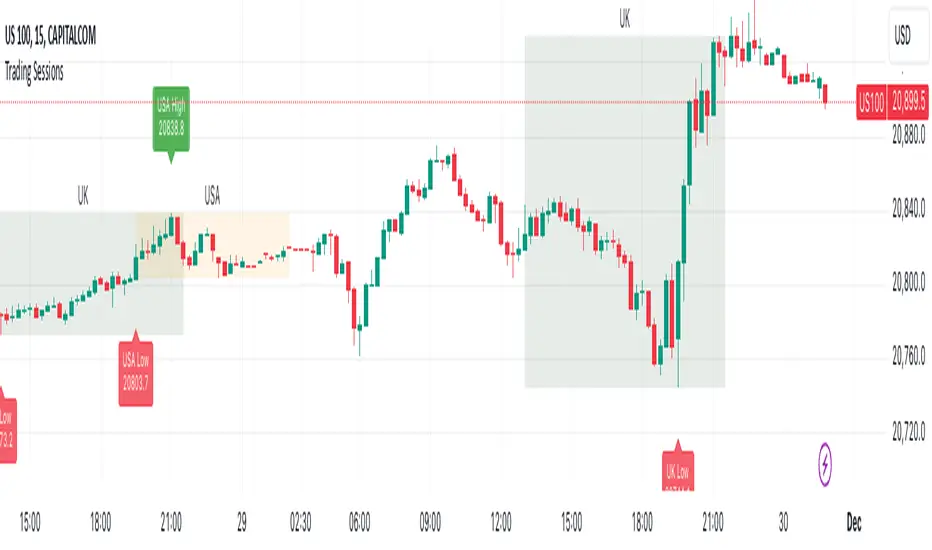
GibbsFunctional Categories
Time Management
Timezone Settings: Configurable to adjust for different global time zones (e.g., GMT, GMT+1).
Daily and Weekly Resets: Functions to detect new days and weeks, used to mark specific periods on the chart.
Session Range Calculation: Ability to determine timeframes in minutes, hours, days, weeks, and months for precise market analysis.
Day and Week Separators
Daily Separators: Option to display daily separators that demarcate different trading days on the chart.
Weekends Highlight: Automatically grays out weekends for easy visual distinction.
Trading Sessions
Custom Sessions: Display trading sessions, such as:
Kill Zones: Morning and afternoon trading zones with customizable time ranges and background highlights.
Asian Session: Highlights the Asian market hours with liquidity data.
Session Background: Customizable colors for different sessions to visually separate them on the chart.
Liquidity Management
High and Low Points: Tracks previous day and week high/low prices, marking them for reference.
Labeling: Uses labels and lines to indicate if significant liquidity levels have been breached.
Session Liquidity: Identifies areas where liquidity is likely to accumulate, marking high and low ranges for Asian, CBDR, and other sessions.
Session-Specific Features
CBDR (Central Bank Dealers Range): Marks specific ranges based on sessions relevant for market analysis.
Range Projections: Projects key levels based on the size of the CBDR range for additional price targets.
Previous Day CBDR: Option to display CBDR from the previous day, aiding in historical price movement analysis.
Header and Display Customization
Header Text: Customizable text for the indicator's header to provide a quick reference.
Table Management: Simple table for organizing and displaying important textual information.
This indicator is ideal for traders who focus on session-based strategies and wish to have comprehensive visibility of previous liquidity points, trading zones, and day/week high and low levels on their charts.
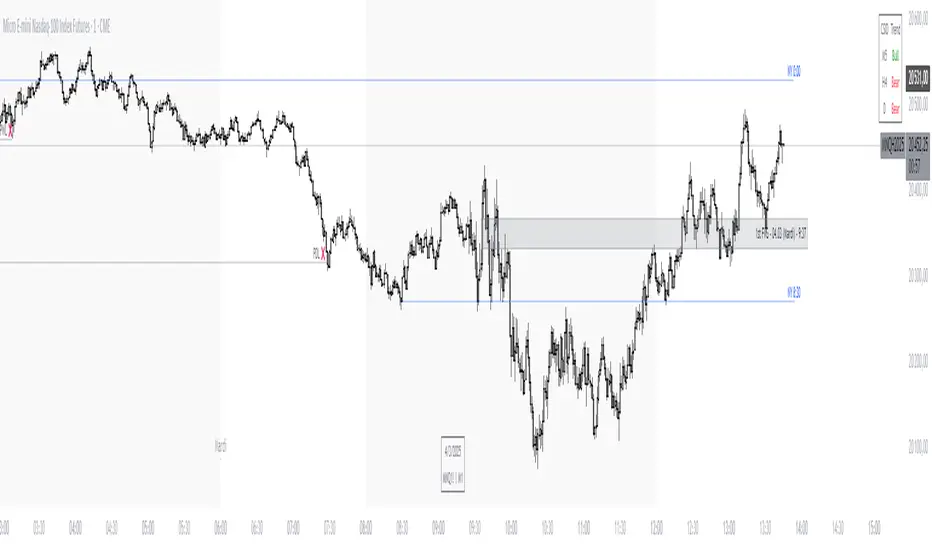
BOS TRADER [v 1.0] [Influxum]The name of the tool, BOS Trader, comes from the abbreviation BOS, which stands for Break Of Structure. In simple terms, this tool identifies situations where a change in market structure occurs after liquidity has been grabbed. Following the structural change, it looks for a point where the balance between buyers and sellers will be tested, potentially continuing the price movement in the direction of the structural break.
The goal of this tool is to identify areas where a trader can look for potential entry opportunities based on their entry rules and filters. In our own research, we found that while this tool is not a standalone strategy, it provides a statistical advantage that stems from the nature of the market itself. If you expect the market to reverse at a certain price level against a short-term, medium-term, or long-term trend, that reversal must logically begin with a change in structure – i.e., its break. BOS Trader then highlights the zone where you can expect a strong reaction from traders speculating on the continuation of price in the direction of the break.
Another important piece of the puzzle is the concept of liquidity. Liquidity grabs are generally considered by traders to be events that can trigger market direction changes. That's why BOS Trader is complemented with multiple ways to identify liquidity in the market from a Price Action perspective. We have explored the liquidity concept in depth in our other tools – the Liquidity Tool and Liquidity Strategy Tester – so we won’t go into too much detail on liquidity settings here.
🟪 Pivots
Liquidity can be found beyond pivot extremes – the highest candles in a series of candles. The pivot liquidity setting specifies how many candles must be before and after the pivot candle with a lower high for a pivot high or a higher low for a pivot low. A pivot high is the local highest point of the last 31 candles (15 before the pivot candle, the pivot candle itself, and 15 after). Another option is to set the time period in which the pivot extreme must occur. For example, you can differentiate between pivot highs of the Asian or London session.
🟪 % Percent Change
This setting is based on the well-known Zig Zag indicator and confirms swing highs or swing lows when there is a certain percentage change in price. This helps filter out noise that can occur when the market consolidates and randomly creates pivot highs or lows that aren’t significant.
🟪 Session High/Low
Many popular strategies are based on liquidity defined as the price range of a specific trading session. This doesn't have to be London, Asia, or New York sessions, but could be, for instance, the first hour of the New York session, and so on.
🟪 Day High/Low, Week High/Low, Month High/Low
As the name suggests, liquidity is often defined by the high/low of the previous day, week, or month. These price levels are watched by many market participants, and it's reasonable to expect reactions at these levels. That’s why we included this option in the BOS tool.
Tip for Traders
To avoid common issues with setting the correct session time, we have added the BG option to the tool – the ability to display a background for the configured trading session. This makes it easy to verify that your trading session is set correctly in relation to your time zone.
Delete grabbed liquidity
If a liquidity level is breached by price, it becomes invalid. For those who prefer to keep their charts clean and uncluttered, there is an option to delete grabbed liquidity. This way, only untraded, valid liquidity lines will be visible on the chart.
Bars after liquidity grab
A liquidity grab should be a significant event that triggers a reaction from market participants. To ensure this is a real response to liquidity rather than random market behavior, we added a time test to the BOS tool. A structural break must occur within a specified time after the liquidity grab. You can define this time in the tool as the number of bars after which the structural break is still considered valid following the liquidity grab.
🟪 AOI (Area of Interest) Settings
Initially, it's important to note that there are two main options for setting the behavior of the AOI. The first option is to fix its duration by the number of bars – Duration, and the second is to keep the AOI valid until it is traded through – Extended.
Duration
Since we expect a quick reaction to the liquidity grab, we also expect a fast pullback to the AOI and a swift response of traders. Our research has shown that the strongest reactions typically occur within a maximum of 15 bars from the formation of the AOI (fractally across timeframes). Therefore, this value is set as the default. However, we recommend considering not just the speed of the reaction but also its intensity. After the set number of bars, the AOI stops extending further.
Extended
We have noticed that price has a tendency to return to the AOI even after a longer period and react again. For this reason, we included the option in the BOS tool to extend the AOI into the future, with the ability to freely adjust the Max AOI Length.
🟪 AOI Size Mode
There are two options for setting the size of the AOI. Either it can be calculated as a percentage of the swing size (% of swing) in which the structural break occurred (the default setting is 30%), or you can set a different concept for the AOI size. For example, the well-known Optimal Trade Entry model. Custom values can be set in the FIBO Levels option, where you can define either preferred Fibonacci values or values based on your own criteria.
🟪 Trading Session (signals + alerts + visibility)
The main goal of our tools is to make it easier for traders to identify patterns and opportunities in the market and allow them to be alerted to their occurrence. The time for AOI plotting after a liquidity grab is combined into a single Trading Session function. This controls both the AOI plotting and when the tool will send alerts. All of this is aimed at helping traders avoid spending the entire day in front of their monitors, waiting for trading opportunities. Here, too, you can use the BG feature to plot a background on the chart showing the current session.
🟪 Trading within session range
We found that some traders have difficulty navigating the many AOIs plotted during times when the market consolidates and creates numerous false breakouts. Therefore, we included an option in the BOS tool to track only structural changes at the price extremes of the current day and trading session. The tool will not plot structural changes for internal liquidity grabs (within the session range), but only for external liquidity grabs (highest highs and lowest lows of the session or liquidity from previous days).
Visuals
The BOS tool is, of course, supplemented with the option to customize the appearance of all its components according to your preferences.

Asian H&L v2 [notRolee]🔥 Asian H&L Indicator:
This indicator is designed to mark the highs and lows of the Asian trading session directly on your chart, helping traders identify key price levels from this important session. The indicator automatically detects the high and low points during the Asian market hours and visually highlights these levels, making it easy to reference them throughout the trading day.
💎 How It Works:
- Asian Session Highs and Lows: The indicator captures the price action within the Asian session (from to in UTC+2) and plots horizontal lines at the highest and lowest price points recorded during that period, but you can change the time zone anytime.
- Dynamic Adjustments: As price action unfolds during the Asian session, the indicator updates the high and low points in real-time, ensuring you are always viewing the most accurate data.
- Visual Customization: The highs and lows are highlighted using distinct colors and line styles to easily distinguish them on your chart, with past session levels optionally being displayed for reference. This makes it simple to identify key zones of support and resistance derived from the Asian session’s price action.
✅ How to Use It:
- Support and Resistance: The Asian session highs and lows often serve as important support and resistance levels throughout the rest of the trading day. Traders can look for price to respect or break these levels, which can signal potential trade opportunities.
- Breakout Strategies: When the price breaks above the Asian high or falls below the Asian low, it may indicate a breakout, suggesting a continuation of the move. Traders can use these breakouts as entry points into trending markets.
- Range-Bound Trading: If the price remains between the Asian high and low, this can indicate a range-bound market. Traders might look for opportunities to trade reversals near these levels, using them as boundaries for taking profits or placing stop-losses.
- Confluence with Other Indicators: The Asian session levels can also be used alongside other indicators to provide confirmation of trade setups. For instance, you could combine this indicator with trend indicators or oscillators to improve your entry and exit points.
🔑 Conclusion:
This indicator offers a structured approach to trading around one of the most critical sessions of the global market. By marking the Asian highs and lows, it helps traders make informed decisions by leveraging key support and resistance zones that influence price action as other sessions (such as London and New York) begin.
If you have any questions about this indicator, let me know in the comment section.
-notRolee
